How to Fix Weak Wi-Fi Signal: Router and Wireless Network Tips
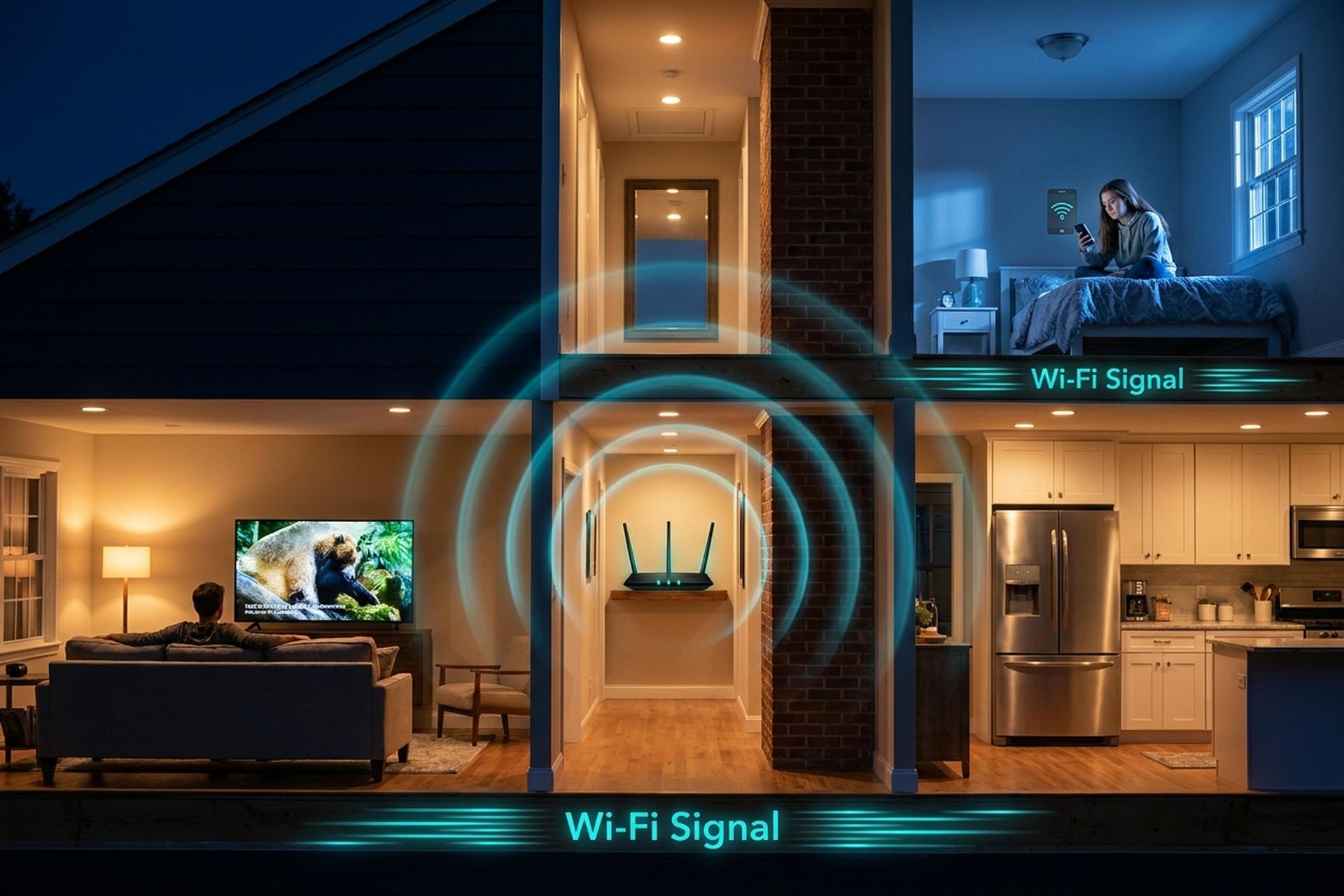
FCC raised the official broadband floor to 100/20 Mbps back in March 2024. Ookla's January 2026 numbers put the US median fixed download at 306 Mbps. So when your laptop crawls in the kitchen while your phone flies through the living room, the ISP plan you pay for is almost never the bottleneck. The Wi-Fi link between the router and the device is.
This guide marches through six diagnostic steps in cheapest-to-priciest order. Diagnose first. Move the router second. Cut interference third. Most homes pin down the dead spot by step four without spending a dime. Steps five and six add mesh hardware or push you up to Wi-Fi 6E / Wi-Fi 7 if the free fixes refuse to stick. A short final section names the moment to stop blaming the router and call the ISP.
Why Your Wi-Fi Signal Is Weak (Common Causes)
Three categories of cause cover roughly 95% of weak wifi signal complaints in a US home.
Distance and walls. A 2.4 GHz signal loses under 1 dB through drywall but takes a 12-23 dB hit through a single concrete wall, per iBwave attenuation data. The 5 GHz band loses up to 45 dB on the same concrete; 6 GHz suffers a little more. Mirrors and Low-E windows act as near-total reflectors. Interference, second. Microwaves, older Bluetooth speakers, baby monitors, and your neighbors' 2.4 GHz networks all crowd the same band. Hardware age, third. A 2017 Wi-Fi 5 router on the closet floor will never feed a 2026 phone, regardless of how many times you restart it. Internet speed at the device drops to a fraction of what the router could deliver on day one.
Step 1 — Diagnose Signal Strength with a Speed Test
Measure before you change anything. The number you get next to the router is your ceiling. The number at the dead spot is your actual problem.
Two Ookla runs do the job. First test: three feet from the router. Second test: the worst spot in the house, the kitchen corner or the upstairs bedroom or wherever Netflix usually stutters. Write both numbers down on paper. Pay for 500 Mbps and the close-up reads 480 Mbps? Service is fine; only the wireless reach is broken. Close-up also slow, way under what you pay for? The router or the modem is the bottleneck, not coverage.
A quick reality check for what counts as normal. FCC's March 2024 Broadband Deployment Report (FCC 24-92) bumped the official US broadband floor to 100/20 Mbps. FCC Form 477 data from June 2024 pegged residential median download at 500 Mbps. Ookla's January 2026 digest came back with a US median of 306 Mbps. So a close-up result anywhere from 150 to 400 Mbps puts you squarely in the mainstream. Anything under 50 Mbps usually points at an aging router or modem, not thin drywall.
While you're poking around, glance at the router's signal strength dashboard. Most modern boxes report RSSI in dBm: -50 dBm is excellent, -67 dBm holds up for video calls, -75 dBm is the practical floor for 6 GHz. Drop below -82 dBm and Netflix starts pixelating around the action scenes.
Step 2 — Move Your Router to a Central Location
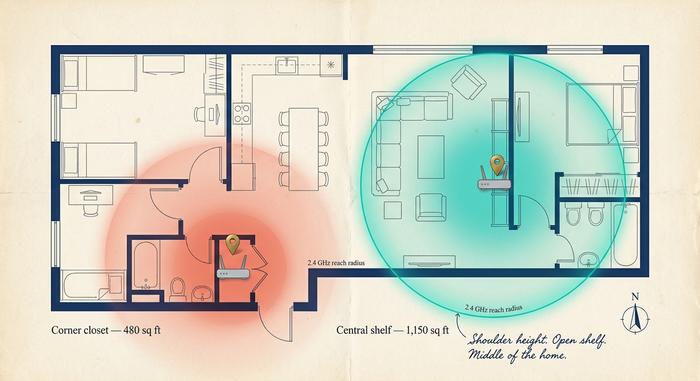
Biggest improvement in this entire guide, and it costs zero dollars. Walk the router out of the corner closet and put it in the middle of the floorplan.
Wi-Fi radiates as a rough sphere. Shove the router into a corner cabinet and roughly half that sphere ends up heating the wall behind the box, which is useful to absolutely nobody. Move the router to the middle of your home, get it off the floor, and usable coverage typically doubles on the first day. Concrete advice: shoulder height or above, at least three feet off the ground, sitting on an open shelf rather than buried in a media cabinet. Even wooden cabinet doors absorb more signal than people expect because they sit only inches from the antennas.
Now the physics part. Per iBwave attenuation testing, walls and household materials take very different bites out of the signal:
| Material | 2.4 GHz loss | 5 GHz loss |
|---|---|---|
| Drywall (single layer) | < 1 dB | 1-2 dB |
| Brick (single course) | 6-15 dB | 10-25 dB |
| Concrete wall | 12-23 dB | up to 45 dB |
| Glass (clear) | 2-4 dB | 3-6 dB |
| Glass (Low-E coated) | 24-30 dB | 30-40 dB |
| Mirror | near total reflection | near total reflection |
| Refrigerator (steel + water) | 6-10 dB | 10-15 dB |
Every 6 dB of attenuation roughly halves the usable distance. A 2.4 GHz signal that comfortably reaches 60 feet through air drops to 15 feet after two concrete walls. The 5 GHz band is worse on the same path: faster speeds, shorter reach. The 6 GHz band Wi-Fi 6E unlocked is even more attenuated, which is why Wi-Fi 7's potential 3.5 Gbps at 6 ft (Tom's Hardware bench) collapses past one wall.
Three quick placement rules to improve performance immediately. Keep the router off the floor (above furniture, ideally above doorways) so the signal radiates from chest height instead of ankle height. Keep it open (no glass cabinet, no metal media console). Keep it central (the geographic middle of the spaces you actually use, not the middle of the entire house including a garage you never enter). If your router has external antennas, angle one vertical and one horizontal; modern adapters in laptops and phones pick up both polarizations, and a mixed angle covers multi-floor homes better than two parallel antennas.
Step 3 — Eliminate Wireless Interference and Obstacles
Your neighbors are broadcasting too. A 2024 PLOS ONE survey of urban Wi-Fi density logged 25 visible access points at the average scanning location in dense neighborhoods. That's two dozen different networks elbowing each other for the same chunk of spectrum.
Now the math gets ugly. The 2.4 GHz band has only three non-overlapping channels in the US (1, 6, 11). Everyone defaults to one of them. Collisions are baked in. Microwaves cook food at 2.45 GHz, which sits right on top of channels 9 through 11. Fire up popcorn during a Zoom call on a 2.4 GHz network and you watch the call freeze for two solid minutes. Older Bluetooth (anything pre-5.2), wireless baby monitors, cordless DECT phones, certain Zigbee smart bulbs—each adds its own slice of ambient noise to that same crowded band.
Three practical moves help. One, segregate. Almost every modern router runs both 2.4 GHz and 5 GHz radios. Name them separately ("Home-5G", "Home-24G") and force your phone and laptop onto the 5 GHz network whenever you're near the router. Hand 2.4 GHz off to gear that needs range more than speed: smart plugs, doorbells, garage cameras.
Two, audit. NetSpot and Wi-Fi Analyzer by farproc (both free on Android) show every visible network and what channel each occupies. iOS users get AirPort Utility with the Wi-Fi scanner toggle flipped on under Settings. Pick the channel with the fewest neighbors on it. In 2.4 GHz that almost always means 1, 6, or 11; which of the three depends entirely on your block.
Three, distance from the loud appliances. Microwave directly above the router: guaranteed pain. Router pressed against a steel filing cabinet, a tropical fish tank, or a mirror: also bad. Give the router six feet of clear air on every side and a startling amount of interference vanishes.
Step 4 — Optimize Channels, Bands, and Restart Firmware
When interference is the bottleneck, two router knobs plus a firmware check usually close the gap.
Start with bands. 2.4 GHz reaches the farthest but tops out around 600 Mbps even on a clear day. 5 GHz delivers over 1 Gbps on Wi-Fi 6 but coughs through walls. 6 GHz, unlocked by FCC 20-51 in 2020, sits on 1.2 GHz of pristine spectrum that no neighbor has crowded yet, except 6 GHz attenuates more aggressively than either older band. Got a 6E or Wi-Fi 7 router and device? Stick your real workhorse laptop on 6 GHz while it's near the router. Leave 2.4 GHz to slow-moving smart-home gear that does not care about throughput.
Channels next. On 5 GHz, automatic channel selection on firmware shipped since 2020 handles itself; the DFS bands give the router twenty-something options to dodge into. On 2.4 GHz, manual override beats auto nearly every time because no algorithm anticipates that your neighbor's microwave fires at noon. Pull up the analyzer scan from Step 3, pick whichever of channels 1, 6, or 11 looks cleanest, set it by hand, save.
Firmware third. Old router firmware leaves real performance on the table. New firmware also patches security holes that bad guys actively exploit; CISA's KEV catalog now lists multiple router CVEs with federal patch deadlines attached. Open the Firmware or System Update menu. Pending update? Apply it before closing the tab. Then just restart the router. A clean reboot flushes whatever DHCP weirdness has accumulated over months of uptime.
A small 6 GHz footnote worth knowing. FCC approved seven Automated Frequency Coordination (AFC) systems on 24 February 2024. Ruckus shipped the first AFC-certified Wi-Fi 7 access point (the R770) on 16 April 2024. AFC unlocks higher transmit power on 6 GHz when used outdoors. For most homes that means 6 GHz finally has the legs to span an open-plan living room rather than only one room over.
Step 5 — Add a Mesh Network, Extender, or Repeater
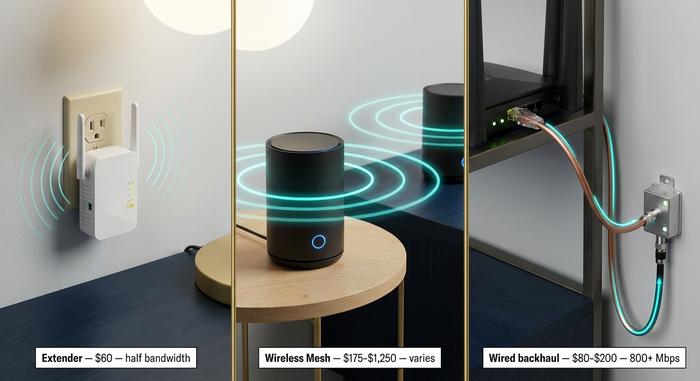
You moved the router. You picked clean channels. Still a dead spot stubbornly haunting the back bedroom. Hardware time. Three options, ranked by what actually works in the real world.
| Solution | Typical cost (2026) | Throughput | When it makes sense |
|---|---|---|---|
| Extender / repeater | $40-$120 | Halves bandwidth (rebroadcasts everything) | Cheap, single dead corner, low-bandwidth needs |
| Wireless mesh kit | $175 (Orbi RBK13) - $1,250 (Eero Max 7) | 70-90% of router speed if nodes line up | Whole-home, no Ethernet cable runs |
| Wired backhaul (MoCA / Ethernet) | $80-$200 per pair | ≥ 800 Mbps consistently (MoCA Alliance field tests) | Best performance; requires coax or cable runs |
A wireless extender (also called a wifi extender or wireless repeater) listens to your router and rebroadcasts the signal. Cheap and easy. The catch: it cuts the available bandwidth roughly in half because the same radio is sending and receiving on one channel. Fine for a smart-home corner. Not fine for video calls.
Wireless mesh kits replace the single router with two or three nodes talking to each other on a dedicated backhaul band. Real prices, March 2026: TP-Link Deco BE63 at $360, Netgear Orbi RBK13 at $175, Eero Max 7 hovering around $1,250. What you actually pay for at the high end is a dedicated 6 GHz radio purely for backhaul. The cheap ones share a band for backhaul traffic, which trims roughly 30 to 40% of the throughput at the far node. Mesh prices keep sliding fast as Wi-Fi 7 device shipments climb (233 million units in 2024, projected at 2.1 billion by 2028 per IDC).
Wired backhaul is the unsexy winner here. MoCA Alliance ran a field test in 2017 across three real homes, pitting Eero, Orbi, and Plume wireless mesh against a MoCA 2.0 wired backhaul over the same coaxial TV cabling the cable company installed. MoCA cleared 800 Mbps in every home, consistently. Wireless mesh varied wildly with layout. So if your walls already have coax (and most US homes built since the 1990s do), a $80-$200 MoCA pair almost always outperforms wireless mesh on the same node count.
Pick what fits your building. A 2,500-square-foot single-story home wrapped in drywall: cheap two-node mesh works fine. A three-story brick row house from 1910: wired backhaul, or nothing else holds up.
Step 6 — Upgrade to a Modern Wi-Fi 6 or Wi-Fi 7 Router
Router from 2019 or earlier? Probably Wi-Fi 5 (802.11ac). Replace it before any extender spending.
Three generations now matter. Wi-Fi 6 (802.11ax) brought MU-MIMO, OFDMA, modest range bumps. Wi-Fi 6E grafted on the 6 GHz band, 1.2 GHz of pristine spectrum no neighbor has crowded yet. Wi-Fi 7 (802.11be) piles on Multi-Link Operation and 320 MHz channels. Tom's Hardware benched a Wi-Fi 7 router at 3.5 Gbps at six feet on 6 GHz, dropping to 1.9 Gbps at twenty-five feet. Wi-Fi 6E in the same lab? Rarely scraped past 1 Gbps. The forecast: 233 million Wi-Fi 7 device shipments in 2024, projected to 2.1 billion by 2028 per IDC.
You do not have to chase the latest. A $150-$250 Wi-Fi 6E box smokes a five-year-old Wi-Fi 5 flagship on every metric that touches a house. Save Wi-Fi 7 money for the day you actually pair it with a multi-gig fiber plan, a wired LAN that can feed it, and devices new enough to negotiate Multi-Link Operation (iPhone 16, Galaxy S25, late-2024 MacBooks). Wi-Fi 7 router on a 200 Mbps cable plan: a Ferrari in parking-lot traffic. The money is wasted.
When to Call Your ISP Instead of Fixing the Router
After all this troubleshooting, run one last test. Plug a laptop straight into the modem or gateway with an Ethernet cable, fire up Ookla again, write down the number. If that wired result still falls more than 20% short of the plan you pay for, no amount of router tweaking in this guide will rescue you. The bottleneck is upstream of your front door.
The usual culprits: modem firmware needs an ISP-side refresh, the coaxial drop into the building has a corroded splitter sitting on the side of the house since 2007, the local cable node congests at 8 pm on weekdays. Pick up the phone. Quote the wired test number to the support rep. Ask for a technician visit. The call is free, the test is free, and the fix sometimes turns out to be a $20 splitter swap the technician completes in five minutes flat.