How to Change Your WiFi Name (SSID) on Any Router in 2026
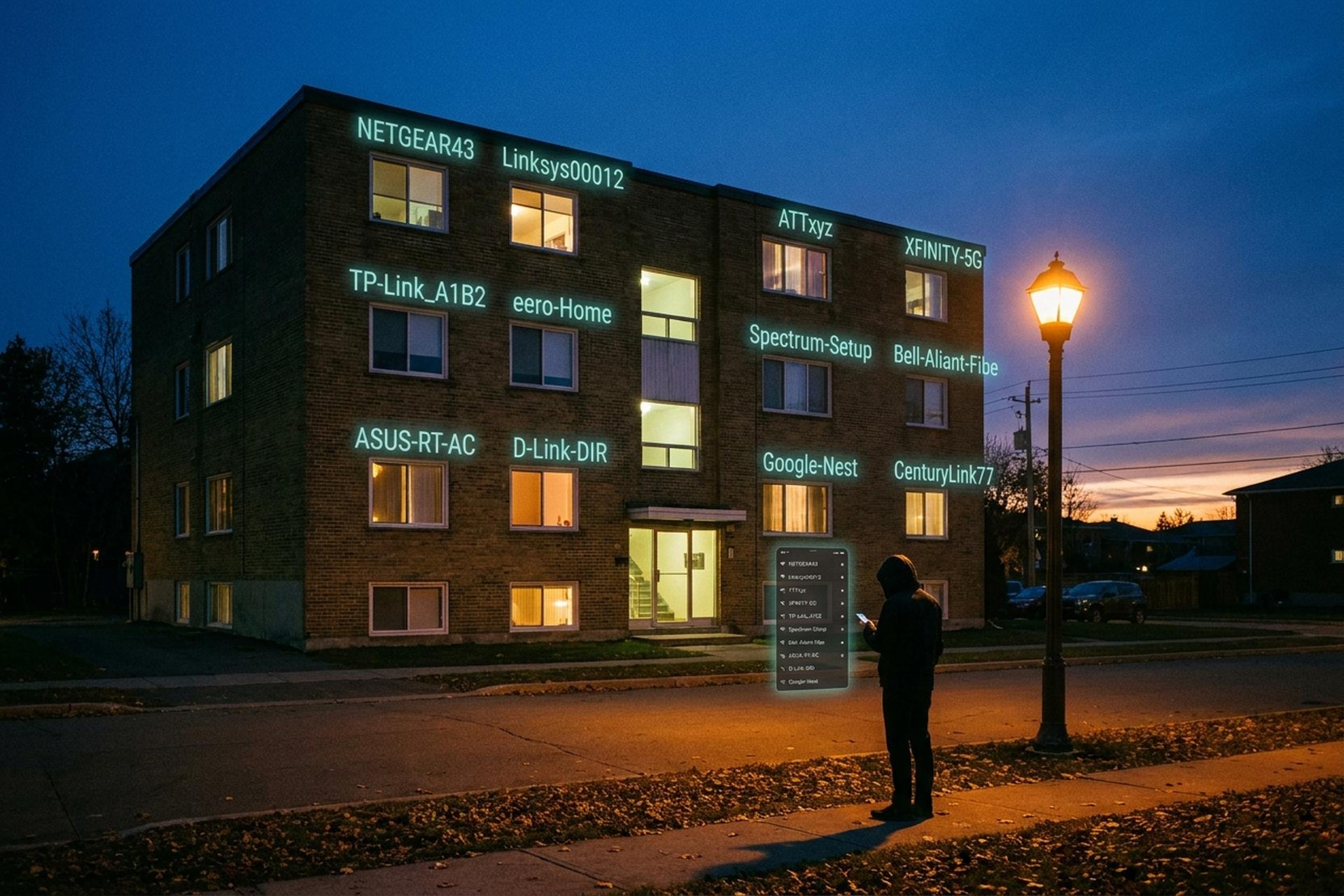
Your WiFi network has a public name, called an SSID, and most households never touch it. A January 2024 German consumer survey put the figure at 89%. That same survey found only 9% had ever set a custom Wi-Fi password. A name like "NETGEAR43" or "TP-Link_A1B2" tells anyone walking past the building exactly which router brand and roughly which model is sitting on the kitchen counter — and from that, which CVEs to try. The CISA and FBI advisories of 2024-2026 said this out loud. The change itself takes about two minutes, plus a short reboot. The reason matters more than the click-path. This guide walks through what an SSID actually is, the universal web-browser method, the menu path for every major router brand, the ISP-supplied gateways from Xfinity, Spectrum, AT&T and Verizon, what breaks when the name changes, and how to handle the splits on Wi-Fi 6E.
What an SSID is — and why renaming it actually matters
SSID stands for Service Set Identifier. It is the visible name your WiFi network broadcasts. When you open the Wi-Fi list on a phone and see "MyHome", "NETGEAR43" or your neighbour's curse word, you are looking at SSIDs. The IEEE 802.11 standard caps it at 32 octets (bytes, not characters), case-sensitive, with most printable ASCII allowed.
Renaming is not just cosmetic. CISA's Secure-by-Design Alert on 31 January 2024 listed default router configurations among the most exploited weaknesses behind the PRC-aligned Volt Typhoon campaign against US infrastructure. Two years on, the FBI's IC3 advisory PSA260407 (7 April 2026) attributed similar router-credential theft to Russian GRU operators targeting end-of-life SOHO hardware. Default names leak vendor and model — "Linksys00012", "ATTxyz", "XFINITY" — and that is enough to pick exploits. Plenty of people want to change the network name and password together for the same reason: the two together are what a passing attacker would look at first. Changing the SSID closes one foreseeable threat. It does not patch the firmware. Both matter, and most modern WiFi networks expose both knobs on the same admin screen, which makes the timing of a joint change easy.
Before you start — what to have ready
Before opening the admin page, gather four small pieces of information and the rest of the process is straightforward on any router on the market.
The first one is the router's IP or web address, almost always printed on the sticker on the bottom of the device. Defaults you'll see most often: 192.168.0.1, 192.168.1.1, 192.168.0.254, 10.0.0.1. Vendors also expose friendly URLs alongside the numbers — `tplinkwifi.net` for TP-Link, `routerlogin.net` for Netgear, `router.asus.com` for ASUS — and either form works.
Second, the admin login. New consumer routers tend to ship with a unique username and password printed on the sticker, while older units still default to admin / admin or admin / password. Anything rented from an ISP usually ties admin access to the ISP's app login instead.
Third, the current WiFi password. Every device on the network will need to reconnect after the rename, and most will prompt for the password during reconnection — better to have it handy than to dig for it once half the house is offline.
Fourth, a draft of the new name. 32 octets is the ceiling. Avoid emoji unless you enjoy debugging probably-unsupported glyphs on a five-year-old smart bulb. And avoid family names, apartment numbers, or anything else you wouldn't stencil on the front door.
Universal web-browser method — works on any router
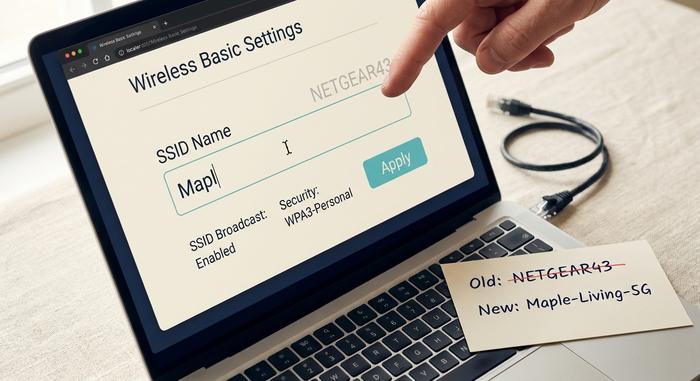
The browser route works on every consumer router that hasn't been fully locked down by the ISP, and it doesn't care about brand. Most of the seven steps take under ten seconds individually; the slow part is the reboot at the end.
Get a phone or laptop onto the WiFi first. If you have an Ethernet cable lying around, use it — wireless drops the moment you hit save, and a browser tab that loses its connection mid-write can leave the admin page in a weird state. Open any browser you like. Type the router's IP or web address into the address bar, not the search bar (those merge into one field on mobile, which is where most people lose ten minutes). Press Enter. 192.168.0.1 covers a lot of cases; 192.168.1.1 covers most of the rest.
Log in using the admin username and password on the sticker. Look for the wireless section, knowing different brands label it Wireless, Wi-Fi Settings, WLAN, or Basic depending on who designed the firmware. The SSID field will be somewhere in there, sometimes labelled Network Name or Wi-Fi Name instead. Type the new name. Save or Apply. The router then reboots, generally 30 to 90 seconds, occasionally longer on ISP-managed gateways. The old network falls off the WiFi list, the new one appears, and every device that used to be on the old one pops a password prompt the next time it tries to reach the internet.
If the admin page won't load, the device is probably on a different network or the IP is wrong. Try the URL printed on the sticker. If the Save button is greyed out, the page is asking for the current admin password again. You can also view the new SSID immediately in the WiFi list on a second device once the router has finished rebooting — that is the fastest confirmation the change took.
Step-by-step for every major router brand
Every consumer router slaps a slightly different label on the SSID field, but the click-path to find it is rarely more than three taps deep from the main wireless screen, regardless of brand.
| Router brand | Access | URL / app | Default login | Path to SSID |
|---|---|---|---|---|
| TP-Link | Web or Tether app | tplinkwifi.net or 192.168.0.1 | admin/admin (old) or sticker | Wireless → Wireless Settings → Network Name (SSID) |
| Netgear Nighthawk | Web or Nighthawk app | routerlogin.net or 192.168.1.1 | admin / password | Wireless → Name (SSID) |
| ASUS | Web or ASUS Router app | router.asus.com or 192.168.1.1 | sticker | Wireless → General → SSID |
| Linksys | Web or Linksys app | 192.168.1.1 or LinksysSmartWiFi.com | admin or cloud account | Wi-Fi Settings → Network Name |
| eero | eero app only | iOS or Android app | eero account | Settings → WiFi Name |
| Google Nest Wifi | Google Home app | iOS or Android app | Google account | Wi-Fi → Settings → Edit network |
These days most apps surface the WiFi network name and password on one combined screen, which folds the two edits into a single round trip instead of two.
A note on TP-Link, because it sits on so many shelves. The FCC's National Security Determination on 20 March 2026 (and the follow-on import-ban order DA 26-278 three days later) cut off new imports of TP-Link consumer routers into the United States. Coverage in Krebs on Security and Tom's Hardware puts the brand at roughly 65% of installed US consumer routers as of 2025, so plenty of households still own one. The rename still works the same way on those units. Two TP-Link CVEs (CVE-2023-50224 and CVE-2025-9377) landed on CISA's Known Exploited Vulnerabilities list in September 2025 with a federal remediation deadline of 24 September 2025, which is the practical reason to change the SSID and check for a firmware update in the same session rather than ticking only one box.
ISP routers — Xfinity, Spectrum, AT&T, Verizon
When the router actually came from your ISP, the route in is almost always through that carrier's own mobile app and not the raw web admin page you'd hit on a retail box. Each ISP picked its own vocabulary along the way. Xfinity calls the relevant area the WiFi tab. Spectrum buries it under Services. AT&T labels the whole thing Manage Wi-Fi. The menus differ in wording but they cover the same ground.
| Service | App | Path |
|---|---|---|
| Xfinity (Comcast) | Xfinity app | WiFi tab → network → pencil → Edit WiFi Settings |
| Spectrum | My Spectrum | Services → Internet → network → Edit |
| AT&T | Smart Home Manager | Wi-Fi → Manage Wi-Fi → Edit |
| Verizon FIOS | My Fios or 192.168.1.1 | Wi-Fi → Network name |
A few notes per carrier. Xfinity's xFi gateway merges 2.4 GHz and 5 GHz into a single SSID with band steering on by default, and splitting them lives behind the Advanced Security or Labs section rather than the main rename screen. Spectrum Advanced WiFi runs the same playbook. AT&T's Smart Home Manager parks a guest-network toggle right next to the rename field, and it's an easy slip to edit the wrong one, so double-check the network you've actually selected before saving. Verizon FIOS routers answer either the My Fios app or the classic web admin at 192.168.1.1, whichever you prefer, with the credentials shown on the gateway label. Plug in the new name, save, give the gateway a beat (managed ISP equipment sometimes takes more than the usual 90 seconds), and reconnect the household.
Wi-Fi 6, 6E, 7 — should you split bands or keep one name?
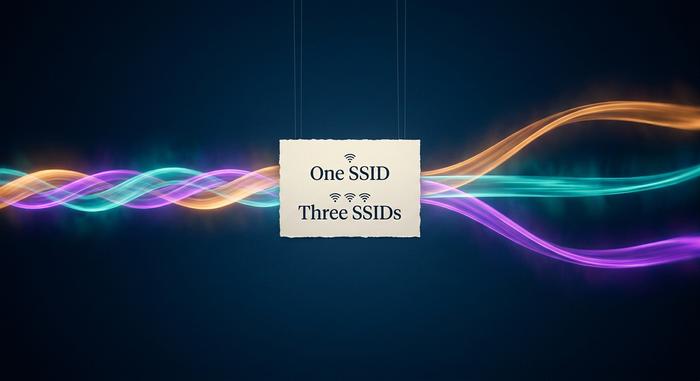
Modern home routers tend to ship with one merged SSID covering 2.4 GHz, 5 GHz and (where supported) 6 GHz. Band steering quietly shoves each device onto the fastest band it can reach. Three networks exist underneath, but the user sees one entry in the WiFi list and never has to think about it. eero, Google Nest Wifi, Xfinity's xFi gateways and Spectrum Advanced WiFi all behave this way out of the box.
Wi-Fi 6E broke the habit. The 6 GHz band requires WPA3 by spec, no exceptions, while 2.4 and 5 GHz still default to WPA2 so a sixteen-year-old smart kettle can still join the party. Mixing the two on a single name is brittle, which is why some routers actually split the 6 GHz off under a second SSID with a clarifying suffix like `_6GHz` or `_Wi-Fi6E`. It looks ugly. It works. Wi-Fi 7 hardware with Multi-Link Operation (MLO) pulled the merge back together because the standard itself now coordinates across bands.
So: stick to one SSID by default. If a Wi-Fi 6E gadget keeps refusing to lock onto 6 GHz reliably, peel that band off into its own clearly-named network and leave the main one alone. Renaming both at the same time is fine. Renaming only the main one and ignoring the 6 GHz spur is also fine. Most households never notice the spur exists.
After the change — reconnecting devices
This is the part most guides skip. The rename disconnects every device on Wi-Fi simultaneously. There is no graceful migration.
A typical household punch-list:
- phones and laptops (rejoin manually, save the password),
- smart speakers — Alexa, Google Home, HomePod (use the manufacturer's app),
- doorbells and cameras (Ring, Nest, Arlo all need the new WiFi configured through their apps),
- printers (most show a Wi-Fi list on the control panel),
- robot vacuums (manufacturer app, look for "WiFi setup"),
- smart bulbs and plugs (some need a full factory reset),
- smart TVs (Settings → Network).
Devices on Zigbee, Z-Wave, Thread or Matter-over-Thread are unaffected — those mesh protocols don't ride the SSID. Anything plugged into Ethernet is fine. Wi-Fi Calling on phones reconnects automatically once the handset rejoins the new SSID.
Troubleshooting — when the new name won't stick
Five common failure modes cover most of the "I changed it and now nothing works" messages tech support sees.
Save button greyed out? The admin page wants the current admin password again before applying anything. Type it, save again. The new name doesn't appear in the WiFi list at all? SSID broadcast got turned off, probably by accident — re-enable it under the same menu. Length error on save? Emoji and most Unicode characters eat several octets each — trim until the whole string fits under 32 octets. Your phone keeps trying to join the old network? Tell it to forget the old SSID in Wi-Fi settings, then connect to the new one fresh. Admin page won't open at all? Either the device sits on a different WiFi, or the IP on the sticker is wrong — try the URL printed on the same sticker, that often works when the numeric IP doesn't.