How to Create Email Filters: Gmail, Outlook, and AI in 2026
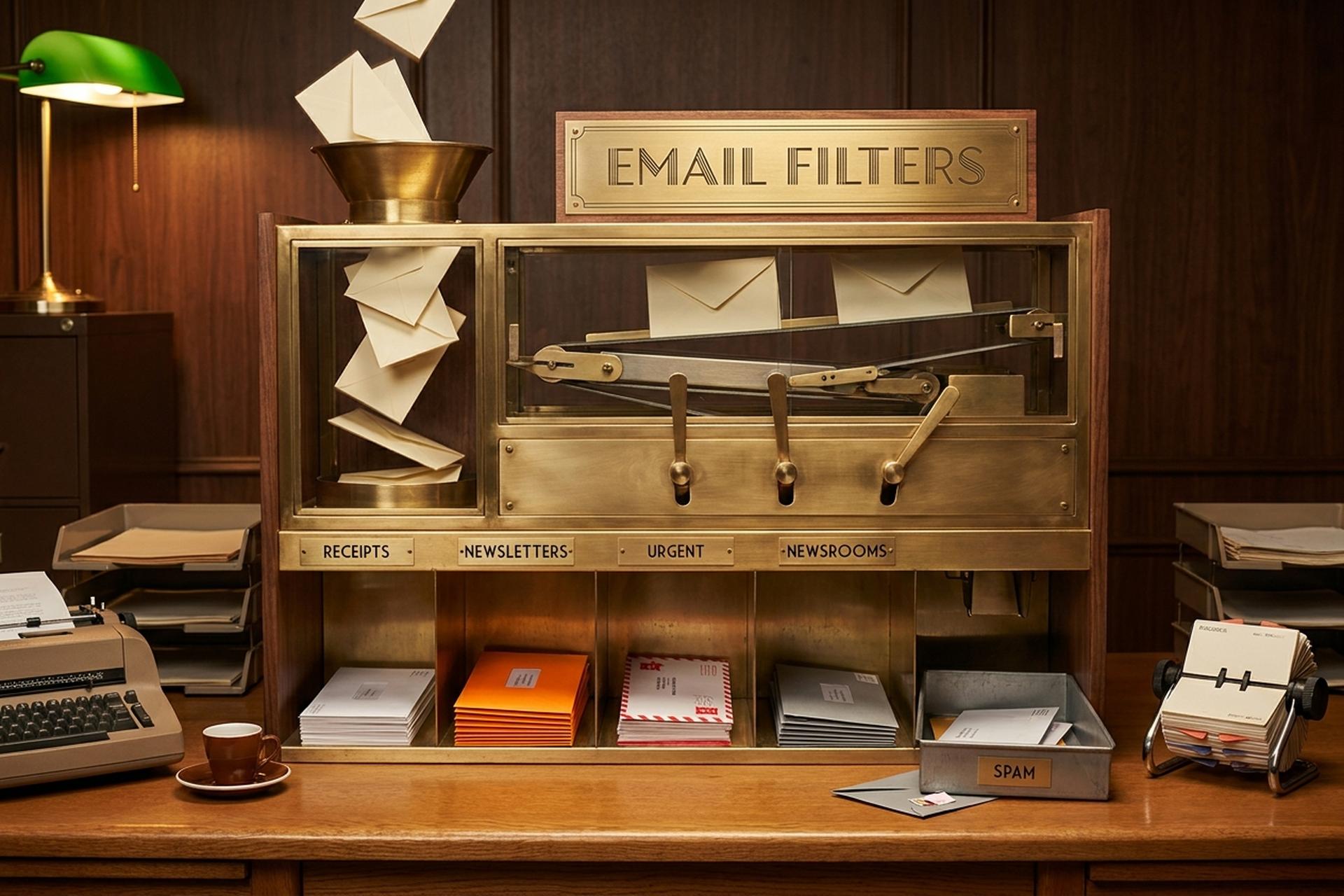
Office workers get 117 emails a day. That number comes from Microsoft's 2025 Work Trend Index. The same report says roughly 28% of the workweek goes to processing them. Nearly half of global mail volume is spam (46.8%, DeBounce December 2024). Most of that noise is predictable. Repetitive. Boring. And almost all of it can be handled by a single rule written once, not a click every morning.
That is what email filters do. They stop you hand-processing predictable incoming emails. Set one up and Gmail, Outlook, or Apple Mail will quietly label, archive, forward, or trash matching messages from then on. I run about thirty filters across two Gmail accounts, and they probably save me an hour a day.
This guide is long because the topic is deep. Gmail gets the heaviest section — Gmail dominates global usage with about 1.8 billion active users. Then Outlook and Apple Mail. Then the search operators that turn a filter from a blunt tool into a precise one. Then ten filter recipes worth stealing. Then what AI added to the picture in 2025-2026, and finally edit/export. Skip to whichever section matters.
Why email filters still beat AI for repetitive triage
The honest case for old-school filters in 2026 sounds like a contradiction. Gmail Gemini, Outlook Copilot, and Apple Intelligence can all sort an inbox automatically. So why bother writing rules?
Two reasons. Determinism is the first. A rule fires the same way every time: every Stripe receipt goes to the Receipts label, every newsletter skips the inbox, every email from your CFO gets a star. AI tools approximate. Sometimes that approximation is right, sometimes it puts a customer email in Promotions and your morning vanishes. The second reason is cost. Most filter actions are free across every consumer mail client. The richer AI features sit behind subscriptions: Google AI Pro starts around $20 a month, Microsoft 365 Copilot adds $30 per seat, Superhuman is $30 a month.
So the model that works in 2026 is layered. Filters handle the predictable 80%. AI handles the fuzzy 20% — surfacing the one email you missed, summarizing the long thread, drafting a reply when you actually need it. This guide focuses on the layer most users skip: writing the actual rules.
How to create email filters in Gmail (step by step)
Three ways in. They produce identical results. Pick the one that fits the moment.
The fastest route is the search bar. See that small slider icon on the right side? Click. The advanced search panel drops down. Type a sender, a subject, some keywords, whether you need an attachment, size in megabytes, date range. Hit Search. Gmail previews matches. If the preview looks right, "Create filter" sits at the bottom of the same panel. One click and you are at the actions screen.
Route two starts inside an existing message. Open something that matches the pattern. Hit the three-dot overflow menu in the top toolbar. Pick "Filter messages like these." Gmail prefills the sender for you. Refine the criteria, click Create.
Route three lives in Settings. Gear icon, "See all settings," "Filters and Blocked Addresses," then "Create a new filter" to organize the whole set from scratch. This is where you go when the filter is not tied to one example email — complex multi-domain matches, migrations between accounts, anything ugly. Use this route any time you want to create a filter from a blank slate rather than from a single example email.
On the criterion screen you can mix and match these fields: From. To. Subject. Has the words. Doesn't have. Size (greater or less than). Has attachment. Don't include chats. Date range. Then comes the actions screen with: Skip the Inbox. Mark as read. Star it. Apply the label. Forward it to. Delete it. Never send to Spam. Always mark as important. Never mark as important. Categorize as. The single most underused checkbox in all of Gmail sits at the bottom: "Also apply filter to matching conversations." Tick it on creation. Your entire historical archive gets the same treatment as new mail. Thousands of old messages move at once.
Google never published an official cap. In practice users report things slowing past roughly 1,000 filters. If you need more than fifty, you are probably overthinking it. The pattern that actually works: a tight set of clear-purpose rules, with Gmail's search handling everything else.
Gmail search operators that make filters powerful
Filters are only as precise as the criteria you give them. Gmail's search operators are the secret weapon. Combine them inside the "Has the words" field to write filters that catch exactly what you mean and miss everything else.
| Operator | What it does | Example |
|---|---|---|
| `from:` | sender address or domain | `from:stripe.com` |
| `to:` | recipient (useful for plus-aliases) | `to:[email protected]` |
| `subject:` | subject line text | `subject:"invoice"` |
| `has:attachment` | only emails with attachments | `from:legal has:attachment` |
| `filename:` | specific file type or name | `filename:pdf` |
| `larger:` / `smaller:` | size threshold | `larger:5M` |
| `older_than:` / `newer_than:` | age (uses `d`, `m`, `y`) | `older_than:30d` |
| `is:starred` / `is:unread` | message state | `is:unread is:important` |
| `label:` | already-labeled messages | `label:work` |
| `category:` | inbox tab | `category:promotions` |
| `list:` | mailing-list identifier | `list:[email protected]` |
| `OR` | match any | `from:(boss OR ceo)` |
| `-` | exclude | `from:newsletter -subject:urgent` |
| `" "` | exact phrase | `"meeting agenda"` |
| `( )` | group conditions | `from:(stripe.com OR paypal.com)` |
| `*` | wildcard inside addresses | `*@partner.com` |
Combine these the way you would chain database queries. `from:(*@vendor.com) has:attachment filename:pdf older_than:90d` matches every PDF invoice from a vendor older than three months. That is the kind of filter you write once and forget.
10 Gmail filter recipes that actually save time
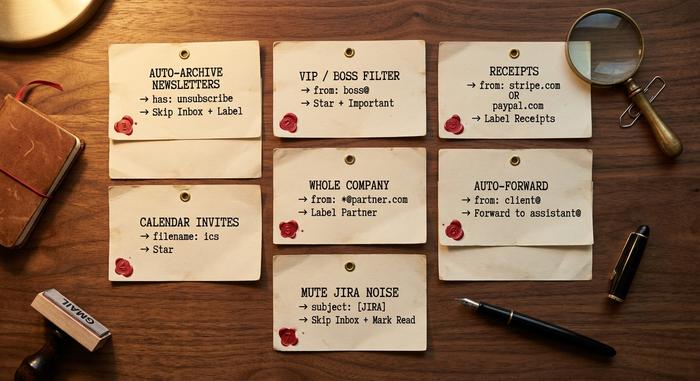
These ten recipes cover most of the repetitive work that lands in a typical inbox. Copy the criteria, paste into the "Has the words" or the relevant field, and pick the action.
| # | Recipe | Criteria | Action |
|---|---|---|---|
| 1 | Auto-archive newsletters | `has:"unsubscribe"` and not from VIP | Skip Inbox + label "Newsletter" |
| 2 | VIP / boss filter | `from:([email protected])` | Star + Mark important |
| 3 | Receipts to a label | `from:(stripe.com OR paypal.com OR amazon.com) subject:(receipt OR invoice)` | Label "Receipts" |
| 4 | Calendar invites priority | `has:attachment filename:ics` | Star |
| 5 | Whole company filter | `from:*@partner.com` | Label "Partner" |
| 6 | Auto-forward to assistant | `from:[email protected]` | Forward to assistant@ |
| 7 | Mute Jira / GitHub noise | `subject:"[JIRA]" OR subject:"[GitHub]"` | Skip Inbox + Mark read |
| 8 | Auto-delete dead notifications | `from:[email protected] older_than:30d` | Delete |
| 9 | Plus-alias receipts | `to:[email protected]` | Label "Receipts" |
| 10 | Priority unless I'm mentioned | `list:* -("yourname")` | Skip Inbox |
Recipe nine is underrated. Gmail (and many other providers) accepts addresses with a `+suffix`. Sign up for newsletters using `[email protected]` and you can filter by the recipient field instead of guessing keywords. Stripe sends to one address, Substack writers to another, and your filter never misses.
Run each new filter against existing mail by ticking the "Also apply filter to matching conversations" box on the final step. The first time you set up a dozen of these, expect a few thousand archived messages and an inbox that suddenly looks like someone else's.
Email rules in Outlook and Apple Mail
Outlook calls them rules. Apple Mail calls them rules. Same idea, slightly different mechanics. Both work.
Outlook first. The fast path: right-click any message, hover over Rules, pick "Create rule." Done in three clicks. For real control, open Settings, then Mail, then Rules, then "Add new rule." The new Outlook supports roughly 500 server-side rules per account. Conditions cover the usual ground — sender, subject, importance, attachment status, recipient, more besides. Actions cover Move to folder, Forward, Delete, Pin, Mark as read, Flag, Categorize, and the underrated Stop processing further rules. Classic Outlook desktop has a slightly different rules editor but identical logic. Sweep is the one-click button next to Archive: useful for blowing through a single newsletter, no substitute for an actual rule. Focused Inbox, Outlook's AI-curated priority tab, can be toggled off in Settings if you prefer your rules to handle everything.
Apple Mail next. There are two systems running in parallel and most users don't realise it. Local rules live on the Mac under Settings → Rules. They only run when Mail.app is open on that particular machine. Server-side rules live online, at icloud.com → Mail → Settings (the gear) → Rules. Those run continuously on Apple's servers. They fire whether or not your Mac is awake, which is what you want for the majority of cases. iCloud caps you at 500 server rules per account, and Apple notes that new or edited rules can take up to 15 minutes to start affecting incoming mail — a quirk worth remembering when something seems broken. iOS Mail does not let you create rules from inside the app, but every iCloud server rule applies on the iPhone the same way it does on the Mac.
Conditions and actions across the three platforms overlap heavily. Outlook adds Flag for follow-up. Apple Mail can play a sound when matches arrive. Gmail has the richest action set. The cross-platform pattern is identical: write the rule once, let the server enforce it forever.
How AI changed email filtering in 2025-2026
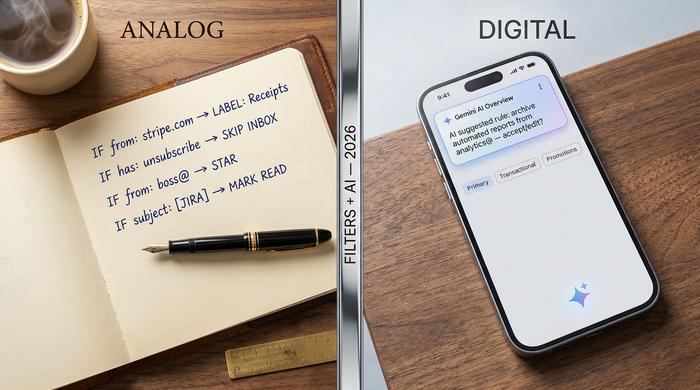
The traditional rule engine has not gone away. What has arrived alongside it is a generation of AI features that automate the harder, fuzzier triage that rules cannot capture.
Gmail Gemini. Google's AI sits inside Gmail at two tiers. Thread-level AI Overviews — short summaries of long threads — are free for personal accounts in 2026. The deeper layer, "ask your inbox" natural-language search and AI Inbox auto-prioritization, requires Google AI Pro or Ultra. Help Me Write and Proofread suggest drafts inside any reply. None of these replace filters; they catch the messages that filters miss.
Outlook Copilot. Microsoft 365 Copilot's email layer offers Summarize, Coach (real-time tone feedback), Draft, and Schedule. In April 2026 Microsoft launched Copilot Agent Mode for continuous triage — an always-on AI that organizes new mail, drafts replies for review, and surfaces what looks urgent. Copilot Agent Mode is the closest current product to a true AI inbox manager, and it costs $30 per seat per month on a Microsoft 365 subscription.
Apple Intelligence Mail. Shipped through 2025, Apple's on-device AI brings Priority Messages (a curated list at the top of the inbox), per-message summaries in the message list, and automatic categorization into Primary, Transactional, Updates, and Promotions. It is the only major implementation that runs locally on-device, which is a real privacy advantage if your inbox carries sensitive material.
Independents worth knowing. Notion launched Notion Mail on April 15, 2025, with plain-English rule creation on top of Gmail accounts — "send all messages from VC investors to a Read Later list" becomes a one-sentence command. Superhuman, acquired by Grammarly in July 2025 (the parent renamed itself Superhuman in October 2025), pioneered Auto Drafts, Auto Triage, and Auto Labels for users willing to pay $30 a month. Shortwave and Spark sit in similar territory at lower prices.
The practical model that works: keep your rules for the predictable patterns, layer AI on top for the rest, and treat AI suggestions as suggestions rather than verdicts.
Edit, delete, import, and export Gmail filters
Every filter on the account lives on a single screen. Settings → "See all settings" → "Filters and Blocked Addresses." Each row has an Edit link and a Delete link on the right. Edit reopens the same two-step criterion-and-action panels from the creation flow. Save and the change overwrites the old rule. Delete removes it without confirmation.
The same screen offers a small checkbox next to every filter and an Export button at the bottom. Tick what you want and click Export. Gmail downloads a `mailFilters.xml` file. The file is portable. Import it into another Gmail account when migrating to a new email address, when sharing a tested filter set with a teammate, or when cloning a system inbox setup for a new hire. The Import button on the same screen accepts the same XML schema. Filters apply in the order they appear in the list; reorder them by deleting and re-creating if precedence matters for your specific use case.