Google Authenticator Transfer: Migrate 2FA to a New Phone
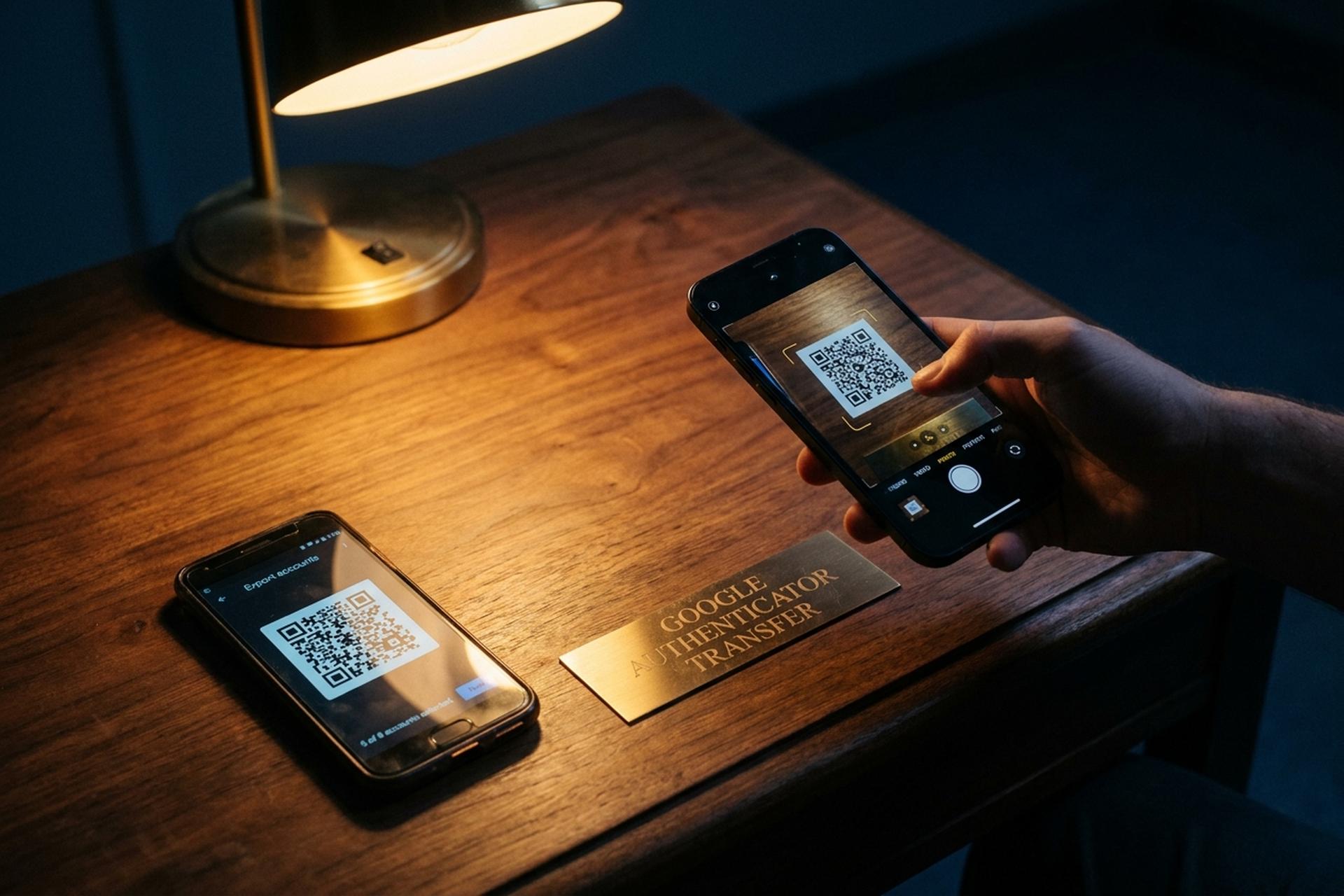
Lose the phone that holds your authenticator codes, and Coinbase puts you in a 48 to 72 hour identity-verification queue before you see your account again. Binance can take a week. A small exchange might take a month. That is the price of an unmigrated authenticator, and it is the only reason this guide exists.
This guide covers how to use Google Authenticator transfer on iOS or Android, in either direction, using the two methods that actually work: the QR-code export that has shipped with the app on your phone since May 2020, and the Google-account cloud sync that arrived in April 2023 with a security caveat worth understanding. It also covers the panic case where the old phone is lost or stolen, the pitfalls of moving 2FA codes to a new phone, and what to do for high-value online accounts where recovery is not always possible. The goal: migrate Google Authenticator without losing access to your accounts, then keep your Google Authenticator codes safe.
Why Google Authenticator transfer matters before you switch phones
SMS 2FA dies with the SIM. A port-out attack, a carrier swap, even a botched eSIM transfer — and the code goes to someone else's phone. The FBI's 2024 Internet Crime Report logged 982 SIM-swap complaints and $25.98 million in direct losses (down from $72.65 million in 2022, but the same scams remain the on-ramp to identity theft and crypto-wallet drains). One-time codes from an authenticator app live on the device's secure storage, not on the carrier network, which is why Microsoft has been able to say for years that flipping on two-factor authentication blocks more than 99.9% of automated account-compromise attempts.
The tradeoff is obvious. Every code lives on one phone. Drop it in the river, factory-reset it by accident, hand it to your kid for "five minutes" — and you cannot access your accounts until you have walked the recovery flow on each service. So save your codes, generate codes only on a device you control, and treat the move to a new phone as routine maintenance.
Before you start: prepare your Google Authenticator app on both phones
A surprising share of failed transfers come from skipped prep, not broken software. Three things kill it more often than anything else: an outdated app, no biometric set, a flaky Wi-Fi. Open Google Authenticator on the old phone and check that it launches and shows current rolling codes. Update it through Google Play (Android version 7.0 or later, released November 14, 2024) or the App Store. Install the same Google Authenticator app on the new phone, sign in with your usual Google account, turn on biometrics — the export prompt refuses to reveal the QR without a fingerprint or face unlock. Plug both devices in, put them on the same trusted Wi-Fi, kill any VPNs.
While the phones update, list every service bound to the authenticator app. Most people have ten or more authenticator accounts without realising it: each Google account, GitHub, every exchange, password manager, AWS console, CMS. The table below maps where backup codes live for the services that lock people out most often. Keep that list and strong passwords for each service close — some recovery flows want both before they will unbind the old device.
| Service | Where the backup codes live | Notes |
|---|---|---|
| Google account | myaccount.google.com → Security → 2-Step Verification | 10 single-use codes |
| Microsoft | account.microsoft.com → Security → Advanced security | Recovery code, also email fallback |
| GitHub | Settings → Password and authentication → Recovery codes | 16 codes |
| Coinbase | Settings → Security → Backup codes | Tied to ID verification on reset |
| Binance | User Center → Security → 2FA | Account recovery 24 hours to 7 days |
| AWS | IAM Identity Center → User profile | Up to 8 MFA devices |
| Facebook / Instagram | Accounts Center → Password and security | 10 recovery codes |
Export and import: transfer your Google Authenticator by QR
QR export shipped in May 2020. It remains the path Google's own iOS help page recommends, and it moves the seeds for every selected account from one phone to another without any server in the middle. No cloud, no Google account.
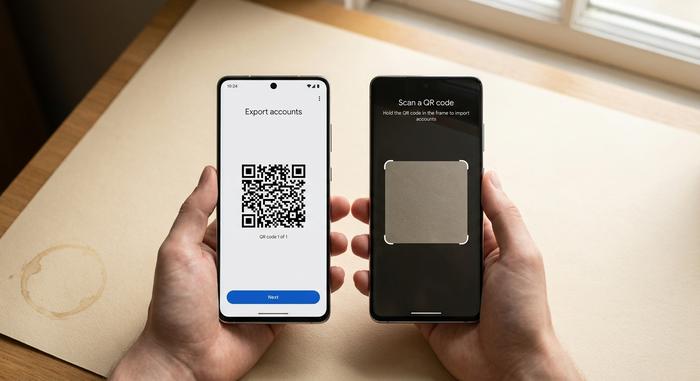
Start on the old phone. Open the app and find the menu — Android puts three horizontal lines in the top-left corner; iPhone puts three dots, usually in the top-right, though some builds tuck them at the bottom. Tap the menu, choose Transfer accounts, and then Export accounts. The app will ask for your fingerprint, Face ID, or device passcode. Once you are through the biometric prompt, you will see a list of every Google Authenticator account on the device. Tick the ones you want to move (the box accepts multi-select) and tap Next. Now the app generates a QR code containing the encrypted seed material for up to ten accounts at once. Have more than ten? You will get a queue of QR codes, numbered, and the app tells you which one you are looking at.
Now the new phone. Open Google Authenticator, tap Get started, or hit the plus icon at the bottom-right if the app is already initialised. Pick Scan a QR code. If the import step asks whether you are importing from an existing account, say yes. Hold the new phone in front of the old phone's screen and let the camera lock onto the QR. The fresh device lists each imported account. Tap Next for any additional QR codes in the batch.
The original codes stay put on the old phone. Verify the new device first, then clean up. Open one bound service, sign in, and check the six-digit verification code from the new authenticator code matches what the service expects. Once two services have let you in cleanly, remove the entries from the old phone's app — or, better, reset the old device for resale.
A few things go wrong in practice. The Android-to-Android path is almost always clean. Android-to-iPhone occasionally fails to display some accounts after import, especially when the scan QR code step encodes more than five entries; reduce the batch size and try again. iPhone-to-Android sometimes hangs on the export screen because Google's iOS implementation lags the Android one; if that happens, force-quit the app, reopen it, and start the export again. A VPN on either device can also corrupt the scan because of camera throttling under some VPN clients. Disable it for the transfer. The transfer codes carried in the QR are time-bounded, so if the new phone's clock is off you may see invalid codes after import — open the app menu and tap Time correction for codes to resync the device clock.
Sync Google Authenticator codes with your Google account
Cloud sync, added on April 24, 2023 with version 6.0 on Android and 4.0 on iOS, is the convenience method. Once enabled, every code you add or remove appears across any phone signed into the same Google account, without QR codes. For most casual logins this is exactly what people want.
The security caveat is worth pausing on. Within 48 hours of the April 2023 launch, the security researchers at Mysk Inc. demonstrated that the traffic carrying the TOTP seeds to Google's servers was not end-to-end encrypted. Google publicly committed to adding E2EE "down the line," but as of this writing the sync is protected by Google's own server-side encryption only, which means Google itself can technically read the seeds. For a Spotify or a Twitter account, that is an acceptable tradeoff against losing access. For a master password manager or a custodial crypto exchange, I prefer the QR method and accept the friction.
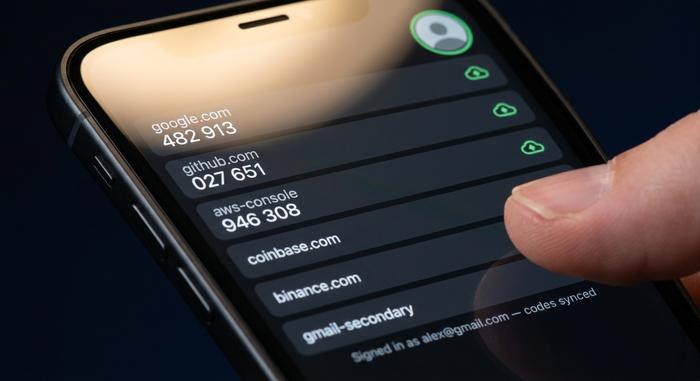
To turn sync on, open Google Authenticator on the old phone, tap the avatar or profile icon in the top-right corner, and sign in with the Google account you want to use as the backup. A green cloud indicator appears next to each synced entry. Open the same app on the new phone, sign in with the same Google account, and the codes appear within a few seconds. There is no QR code to scan and no biometric prompt.
If you want a Google Authenticator transfer that costs almost nothing in friction, sync is the answer — but use it only for low-value accounts if you distrust the no-E2EE design. Keep the high-value seeds (banking, crypto, serious GitHub) bound to one device through QR export, or move them entirely to a passkey or hardware key. CISA's 2022 phishing-resistant MFA fact sheet, reaffirmed in 2024, ranks FIDO2 hardware keys above any TOTP method.
Set up Google Authenticator on a new device without the old phone
If the old phone is already lost, stolen, or bricked, none of the methods above work, because they all need the source device. There is no "restore from cloud" path unless you turned on sync before the loss. What follows is the only option, and it is slow.
For each bound service, you need to log in another way and rebind 2FA to the new phone individually. Backup codes are the fastest route to recover your account: Google issues ten single-use backup codes from your Google account during 2FA setup, GitHub issues sixteen, most exchanges issue eight to twelve. If you have them saved in a password manager or printed, use one to log in, then go straight to Security settings, remove the old authenticator binding from another device, and pair the new phone by scanning a fresh QR code to push the codes to your Google account again.
If you do not have backup codes, you fall into the slow lane. Coinbase Help documents 48 to 72 hours for 2FA reset, longer when identity verification kicks in. Some banks require an in-branch visit. The lesson: set up Google Authenticator with backup codes bound to a password manager on the day you first enable it, and print a paper copy stored somewhere your phone is not. Either way, keep a username-and-recovery-email checklist for every online account gated by Authenticator.
Move 2FA codes between Android and iPhone without losing access
Cross-platform migration is where the most help threads cluster. The Google Authenticator transfer works in both directions across iOS and Android, but two failure modes recur. The first is the export QR scanning successfully and the new device showing only a subset of the accounts. This is almost always the ten-accounts-per-QR ceiling biting silently, especially when the iOS app generates the QR. Reduce the export to five accounts at a time. The second is the export menu showing "no accounts to export" on iOS even though the codes are clearly running. The fix in 2026 builds is to update to the latest TestFlight or App Store version, force-quit the app, and toggle the device's biometric setting off and on once.
Take screenshots of each export QR before scanning — on a second device, or print them. Any device can scan a QR to import, but Google does not let you regenerate the same export, so a clean screenshot is the difference between five minutes of work and the panic lane above. Whether you are migrating on iOS or Android, storing those QR screenshots securely (in an encrypted password-manager note) is the cheapest possible insurance.
Use Google Authenticator accounts with crypto exchanges and Web3
Account takeover on a crypto exchange or wallet is functionally irreversible: once funds move, they are gone. Authenticator codes are the minimum bar, and Microsoft's reporting of a 146% year-over-year increase in adversary-in-the-middle phishing through 2024 means even TOTP is not enough on its own. The May 2026 "code of conduct" AiTM campaign hit more than 35,000 users across 13,000 organisations in 26 countries — the attackers proxied legitimate login pages, captured the TOTP code in real time, and stole the session cookie before the user noticed. Bind a hardware key (YubiKey or similar) to the master Google account first, then layer Authenticator on the exchange side, and disable SMS 2FA the moment Authenticator is confirmed working. The FBI's 2024 IC3 numbers put total cybercrime losses at $16.6 billion, and crypto-related complaints continue to climb each year.
Crypto payment processors deserve the same treatment as exchanges. Plisio, for example, supports TOTP for merchant accounts, and binding it through Google Authenticator (or any TOTP-compatible app) protects the dashboard that controls outgoing transactions. When migrating to a new phone, treat the payment-gateway dashboard the same way as a hot wallet: QR export only, no cloud sync, fresh backup codes generated and stored after the move.
Alternatives to the Google Authenticator app worth considering
The Authy collapse reshuffled the market. On March 19, 2024 Twilio killed Authy's desktop apps months ahead of the originally announced August date. Then in July 2024 attackers walked off with 33,420,546 Authy phone numbers through an unauthenticated API, and Twilio confirmed the breach. Two strikes in four months. Authy users scattered.
| App | Cloud sync | E2EE sync | Platforms | Open source |
|---|---|---|---|---|
| Google Authenticator | Yes (since 2023) | No (server-side only) | iOS, Android | No |
| 2FAS | Yes (optional) | Yes | iOS, Android, browser | Yes |
| Aegis | No (local backup only) | N/A | Android | Yes |
| Ente Auth | Yes | Yes | iOS, Android, desktop | Yes |
| Microsoft Authenticator | Yes | Yes | iOS, Android | No |
| iOS 18 Passwords app | iCloud Keychain | Yes | iOS, macOS | No |
Apple did something quiet in September 2024 worth knowing about. iOS 18 broke iCloud Keychain out into a dedicated Passwords app that natively generates TOTP codes, autofills in Safari, and syncs with end-to-end encryption. For Apple-only users, that removes the need for a separate authenticator app altogether. For everyone else, the table above is the shortlist.
Keep your Google Authenticator codes safe after the transfer
Run through this list the moment the import finishes. Log into at least three of the most important bound services from the new phone and confirm the codes work — and that the main screen of the authenticator app shows every account you expected. Regenerate backup codes on every service you just moved; store them in a password manager and on paper, in different places. Erase the old phone through Find My iPhone or Android Find My Device before passing it on. For the master Google account, layer a passkey or a hardware security key on top, so even another phone with your Authenticator on it is not enough on its own. That layered setup is what stops the AiTM campaigns Microsoft has been tracking through 2026. More importantly, it is what turns the next Google Authenticator transfer into a fifteen-minute job rather than a panic.