192.168.100.1 Login: Router Admin IP & Wi-Fi Setup Guide
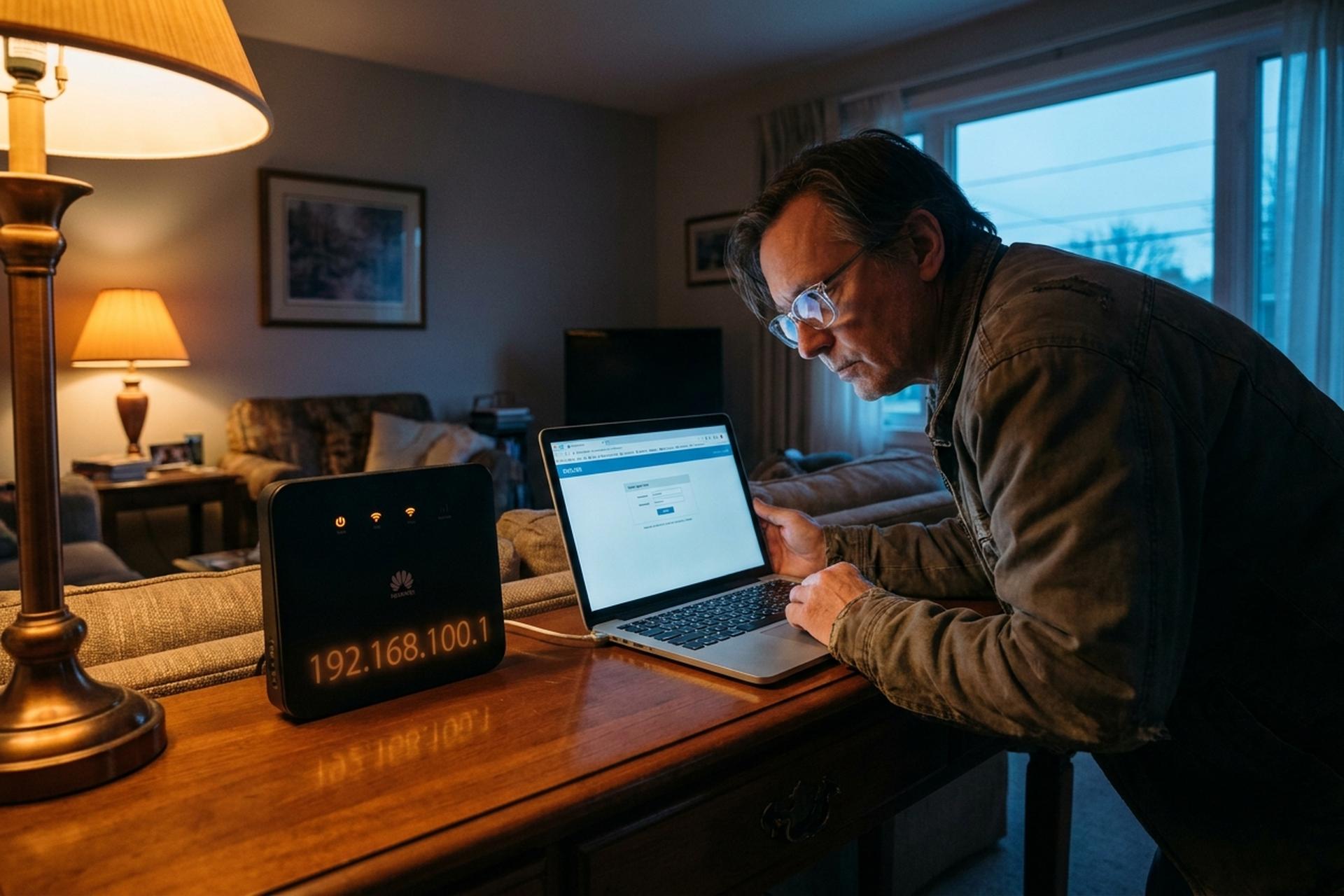
Your router's sticker shows 192.168.100.1. Half the guides on Google show 192.168.1.1. Neither is wrong; they describe different boxes. The 192.168.100.1 club is small and specific: Huawei GPON fiber units, Motorola SBG940 cable combos, certain Comcast-issued Arris boxes, plus a fistful of carrier-flashed gateways. If your sticker shows anything else, close this tab and type the sticker number into your browser. No troubleshooting here will rescue you.
I have walked enough friends through this same login that the three failure modes are basically muscle memory now. The gateway IP is wrong. The factory credentials are wrong. The URL ended up in the Google search box instead of the address bar. Fix those three, and the admin panel is sitting there waiting. The sections below tackle each in order: the four actual steps to log in, the right factory defaults per brand, the failure modes that strand most readers in browser-tab purgatory, and a brief security cleanup almost nobody does until something bad happens. Jump around as needed; sections do not depend on each other.
What 192.168.100.1 Is and Why Your Router Uses It
Quick version: 192.168.100.1 is a private IPv4 address living inside the 192.168.0.0/16 block. The whole block, 65,536 addresses, was set aside by RFC 1918 in March 1996. None of these addresses ever route on the public internet.
Longer version is worth a paragraph because the next question is always "fine, but why my router and not the neighbor's." Two reasons. First, telecom support staff prefer 192.168.1.1; it reads cleaner over the phone ("one ninety-two dot one sixty-eight dot one dot one") than the longer 192.168.100.1. Consumer-grade brands (Linksys, Asus, TP-Link, Netgear) standardized on the easy number decades ago. Second, the 100 slot got carved out for a different class of hardware: Huawei GPON optical network terminals, certain Motorola and Arris cable modem-router combos, plus ISP gateways where the carrier flashed in custom firmware. Whoever assembled your box chose this address on purpose. Usually to keep ONT management traffic on its own subnet, so a chatty smart fridge cannot accidentally poke the fiber stack.
How to Log In to a 192.168.100.1 Router Step by Step
Four steps. Order matters more than people expect.
Step 1. Get the router talking to your computer. Plug an Ethernet cable into one of the LAN ports if there is one. Wired beats wireless during admin work; Wi-Fi sessions drop sometimes mid-firmware, which is the worst time for that. Many fiber ONTs only expose a single Ethernet port (mine has one black one labeled LAN1, nothing else), so use that. No spare cable? The Wi-Fi name on the sticker works just fine to reach the login screen.
Step 2. Browser, address bar, IP. Drop `http://192.168.100.1` into the URL bar; not the Google search box, not the "type something here" prompt on a new tab. URL bar specifically. Browser pauses for a half-second, login form appears. Chrome, Firefox, Edge, Safari, they all load the page identically. Heads-up: some Huawei ONTs answer over HTTPS with a self-signed cert, which trips the "your connection is not private" splash. Click "advanced," then "proceed to 192.168.100.1 (unsafe)." The cert is local to your LAN. There is no eavesdropper here; the warning is procedural.
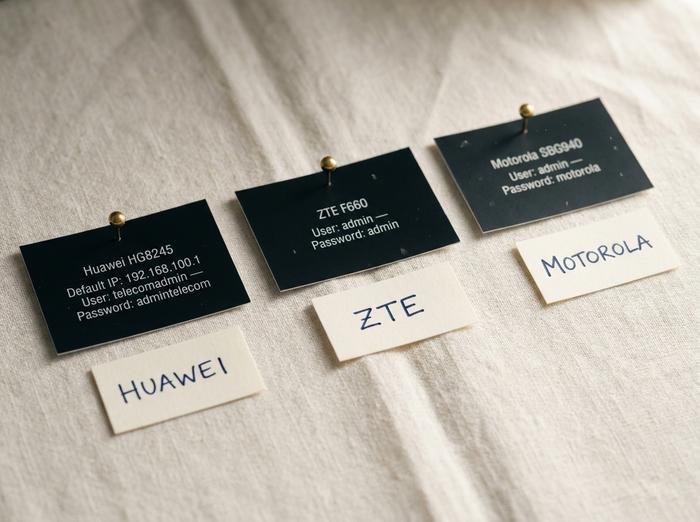
Step 3. Type the factory credentials. They appear on the back or bottom sticker, sometimes called "login details," "admin access," or simply "default password." If your sticker is faded or missing (mine was on a five-year-old Huawei box), jump down to the next section for brand defaults. Mind the case: most factory passwords mix capital letters and digits, and typing fast on a phone keyboard is where I see most fat-finger mistakes.
Step 4. The admin panel loads. That is the 192.168.100.1 admin login screen you came for. Tabs for Status, Wi-Fi, Security, WAN, maybe Firewall and Parental Controls depending on the firmware. You can now rename your wireless network, change a password, set up port forwarding, the usual. See a setup wizard instead? The router was factory-reset (by you or by the previous owner) and wants to be provisioned from scratch.
A few sharp edges worth knowing about. Port 80 gets remapped on some ISP-locked Arris boxes, so try `http://192.168.100.1:8080` if the default port returns nothing. Sidestep Internet Explorer compatibility mode and legacy Edge builds; their JavaScript engines stumble on modern ONT admin pages. Mobile browsers handle password changes without complaint. They struggle with firmware updates, though, because small screens crop the action buttons. Use a laptop for the first session, then switch to your phone for everyday tweaks.
Default Username and Password for Popular Router Brands
Pretty much every "twenty router brands that use 192.168.100.1" article on the open web is half-fabricated. Mainstream consumer kit (TP-Link, Netgear, Linksys, Asus) almost never lands here; those brands defaulted to 192.168.1.1 or 192.168.0.1 decades ago. The short list below is what actually ships with 192.168.100.1 as the gateway IP.
| Brand / model | Default username | Default password | Notes |
|---|---|---|---|
| Huawei GPON ONT (HG8245H, HG8245W5, EchoLife) | telecomadmin | admintelecom | Super-admin account, often hidden from the consumer-facing login screen |
| Huawei GPON ONT (standard) | root | admin | Limited account, cannot edit WAN |
| ZTE F660 / F670L | admin | admin | ISP often customizes; check sticker first |
| Motorola SBG940 / MB8600 | admin | motorola | Older cable modem-router combos |
| Arris cable modem (Comcast-issued) | admin | password | Bridge-mode units sometimes use port 8080 |
| Askey / Ambit / Netronix gateways | admin | admin | ISP-rebranded fiber units |
| RCA DCW615R | admin | admin | Cable modem-router |
One clarification, because misinformation here costs people their evenings. Huawei mobile hotspots (the E5573, E5577, E5783 series) do NOT use 192.168.100.1; their gateway is 192.168.8.1. Netgear Nighthawk M1 and M2 portable routers run on 192.168.1.1. Quite a few of the "all-Huawei-uses-100.1" lists just lump every Huawei product into a single row. Follow that, and your browser tab hangs forever.
Then there is the post-2024 wrinkle. Newer Huawei ONTs ship with per-device passwords stamped directly on the sticker, no universal default. The cause was regulation: the United Kingdom's Product Security and Telecommunications Infrastructure Act took effect on 29 April 2024 and banned consumer connected devices that shipped with universal default credentials. Vendors selling into the UK had to switch to per-device passwords. Most of them used identical hardware everywhere, so a fiber unit bought in São Paulo or Manila in 2025 may well sport unique credentials too. Bottom line: the sticker wins. Even against this table.
Carrier customization is its own headache. ISPs that hand out Huawei or ZTE boxes almost always overwrite the factory defaults with a firmware build of their own. AT&T, Verizon Fios, BT in the UK, Telstra in Australia, plus a long list of LATAM and APAC operators, all do exactly that. If neither the manufacturer's default nor `admin/admin` opens the door, search the ISP's own support site for "default admin password" alongside your modem model number. The right combo is usually one click into the carrier's help center, which beats guessing through five wrong attempts and tripping a fifteen-minute lockout.
Troubleshooting: Unable to Access 192.168.100.1
Five symptoms cover roughly 95% of what stops people from reaching the page. Ranked by frequency in my own queue.
| Symptom | Likely cause | Fix |
|---|---|---|
| Page never loads, browser spins forever | Wrong gateway IP for your router | Run `ipconfig` (Windows) or `ifconfig` (Mac/Linux); copy whatever "Default Gateway" reports |
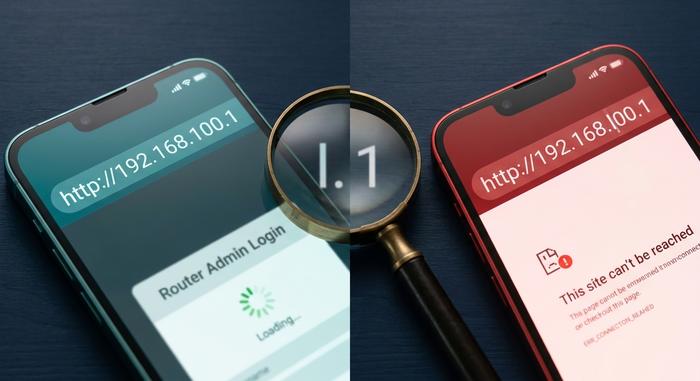
| Browser searches for the IP instead of opening it | Typed into the search box, not the URL bar | Click the URL bar directly; prefix with http:// |
| "Your connection is not private" warning | Huawei ONT serves admin over HTTPS with self-signed cert | Click "advanced," then "proceed to 192.168.100.1 (unsafe)" |
| Page loads but rejects every login | Wrong defaults, or somebody already changed them | Try the brand-specific defaults in the table; if nothing fits, factory reset |
| "This site cannot be reached" | Admin panel listens on a non-standard port | Try `http://192.168.100.1:8080` |
A typo eats more hours than any of those: 192.168.l00.1, where the lowercase letter L replaces the digit 1. The two characters render identically in most serif fonts (Times, Cambria, Garamond), so a copy-paste from a forum post in 2014 quietly breaks. Browser address bars do not autocorrect. Retype the IP yourself, slowly, one character at a time, if anything about the URL looks even faintly wrong. Other slips that hit the same nerve: a capital O pretending to be zero (192.168.1OO.1), a comma where a dot belongs (192.168.100,1), or a trailing forward slash that some browsers tolerate and some do not. Cure for all of them is identical. Click into the URL bar, hit backspace until it is empty, type by hand.
After all of that, still stuck? Factory reset rolls the router back to whatever it shipped with on day one. The button is a recessed pinhole, usually on the back, sometimes underneath; a straightened paperclip presses it just fine. Hold 10-30 seconds depending on the model, until the status LEDs blink together. Reset is destructive: it nukes your Wi-Fi name, your Wi-Fi password, port forwards, parental controls, every customization you ever touched. Photograph the current screens with your phone before committing.
One last gut-check, before the cables come out. Confirm 192.168.100.1 is your gateway, not just a number from a Reddit thread. Windows: open Command Prompt, type `ipconfig`, read the "Default Gateway" line under your active adapter. macOS: Terminal, `netstat -nr | grep default`. Linux: `ip route | grep default`. The number that prints is your real gateway. If it says 192.168.1.254 or 10.0.0.1 or 172.16.0.1, then 192.168.100.1 reaches nothing on your network, and never will. No troubleshooting recipe fixes that mismatch.
Configure Wi-Fi Settings via the 192.168.100.1 Admin Panel
You are in. Now, three settings actually move the needle. Everything else on the screen is a rabbit hole.
The SSID. Your Wi-Fi name. Buried under WLAN → WLAN Basic Configuration on Huawei ONTs, or Network → WLAN → Basic on ZTE. Pick something you will recognize at a glance, like "Maple-Living" or "5G-Garage". Skip the apartment number, skip the surname; that text leaks to every phone scanning nearby. Hit Apply before you click away or the change quietly vanishes.
The encryption mode. WPA3-Personal first choice. WPA2-AES if your router is older than 2020. Stay out of WPA/WPA2 mixed mode unless you genuinely have a 2008 laptop in the mix. WEP is dead; do not even consider it. The setting sits in the same WLAN menu, a click or two from the SSID box.
The channel. In a detached house, leave it on auto and move on. In an apartment block with thirty Wi-Fi signals shouting over each other, channel choice is the difference between a smooth video call and a slideshow. The 2.4 GHz band has three non-overlapping options in most regions: 1, 6, and 11. On newer firmware auto-select is fine; on older units, fire up a Wi-Fi analyzer app on your phone, see which channel your neighbors are not using, set it manually. The 5 GHz band has so many channels and so much less congestion that auto wins by default.
A couple of optional toggles worth a glance. Guest Wi-Fi spins up a second SSID that cannot reach your main LAN, perfect for the evening when friends bring three laptops. Look for WLAN → Multi-SSID or Network → WLAN → Guest. And there is a "Hide SSID" checkbox that pulls your name off public scans. It does not actually hide anything from a determined attacker (the SSID leaks the moment a client connects) but it keeps idle neighbors from clicking on your name out of curiosity. Both are small wins; neither replaces a strong password.
192.168.100.1 vs Public IP Addresses: Why It Stays Private
A private IP carries meaning only on your own local network. That is the whole magic trick.
RFC 1918 carved out three private address blocks in 1996: 10.0.0.0/8 (about 16.7 million addresses), 172.16.0.0/12 (just over a million), and 192.168.0.0/16 (65,536 addresses). None route on the open internet. NAT, the Network Address Translation shim your router runs quietly, rewrites every outbound packet so the wider web sees a single number: the public IP your ISP rents to your line. Behind that single mask, dozens of devices in your home share the 192.168.100.x pool.
Test it for yourself sometime. Walk to a cafe with your laptop, type 192.168.100.1 into the browser. Nothing useful loads. Maybe someone else's router login. Maybe a captive portal that wants you to sign in for free Wi-Fi. Definitely not your home gateway. Across the planet, millions of LANs use this exact same internal address, with zero conflict, because by design they never touch each other directly. Same logic explains why those "somebody is using your IP address" scare emails are noise: your public IP is what the rest of the world sees, your private one is your own walled-off island.
Security: Change Your Default Admin Login Right Now
This is the section nobody bothers with until the day a stranger reroutes their DNS through Moscow. Leaving the factory admin login on a 192.168.100.1 router is, by a wide margin, the leading reason home networks get hijacked.
Some numbers. Broadband Genie surveyed 3,242 UK households in 2025: 81% had never changed their router admin password, 84% had never patched the firmware. Those ratios hold globally, as far as anyone can tell. A joint Bitdefender / NETGEAR report covering January through October 2025 logged 13.6 billion attacks aimed at home networks, 4.6 billion of them blocked exploits, working out to roughly 29 attempts on every household per day. In 2024 the same metric was 10. The slope is the bad news.
These are real ops, not abstract risk. Flax Typhoon, the "Raptor Train" botnet that the US Department of Justice dismantled in late 2024, had quietly enrolled more than 200,000 small-office and home routers. Russian APT28 exploited CVE-2023-50224 in unpatched TP-Link Archer units; by the time the FBI seized the C2 infrastructure in April 2026, the operation had touched over 18,000 devices across 120 countries. CISA added that CVE to its Known Exploited Vulnerabilities list with a federal patch deadline of 24 September 2025.
Three things you can do in the next ten minutes. One: replace the default admin password with something you have never used elsewhere. Long, mixed case, no real words. Two: swap the Wi-Fi password while you are still inside the panel, save the changes, then reconnect every device with the new key. Three: open the firmware menu, and if a pending update is sitting there, apply it before you close the tab. The whole loop, login swap plus Wi-Fi password reset plus firmware patch, runs under ten minutes on a 192.168.100.1 router. Those ten minutes shut the door on the cheap, opportunistic end of the attack market, which is where most home hijacks actually live.