10.0.0.0.1 Piso WiFi Time: Router Admin Login and Pause
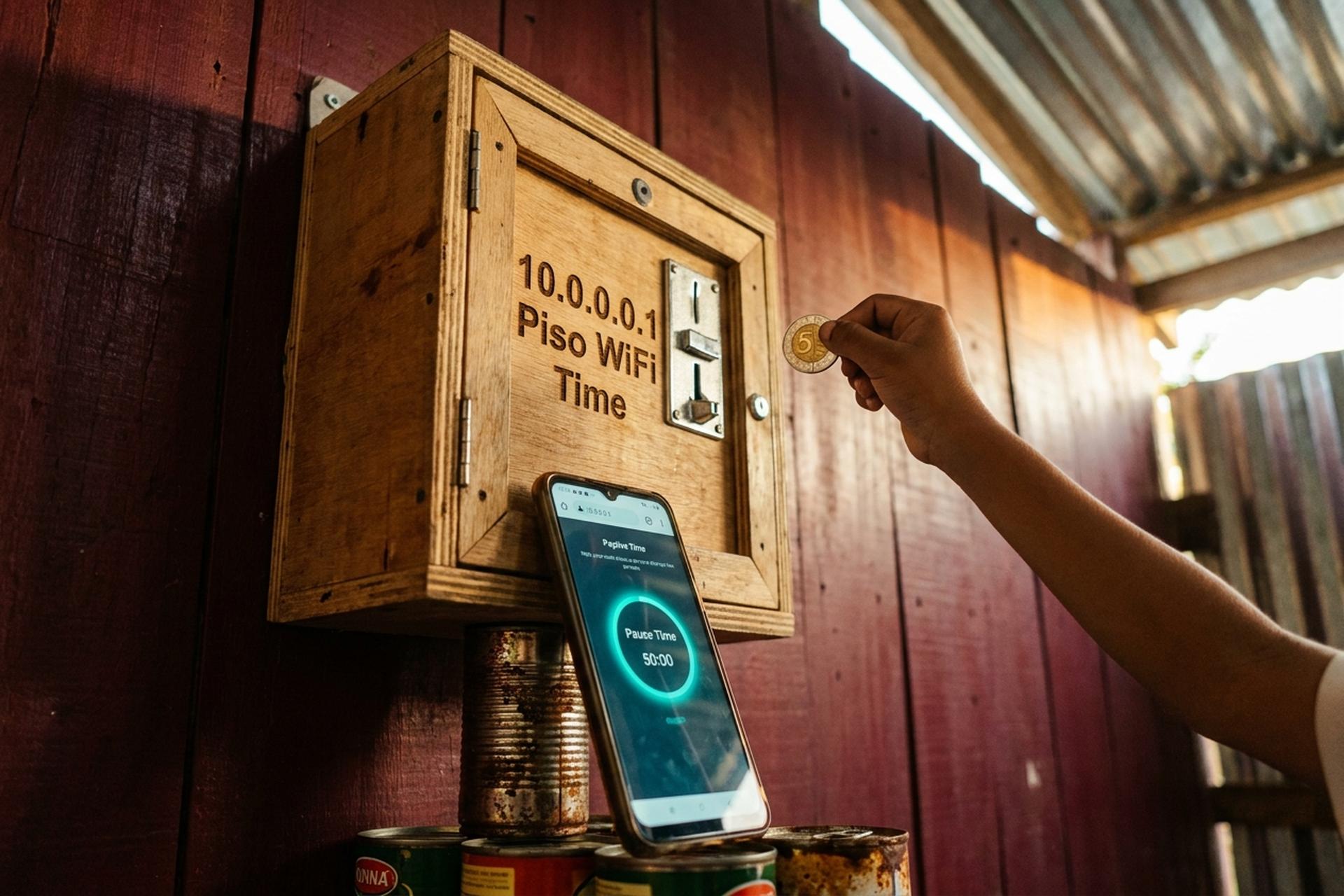
A teenager in Cebu City drops a five-peso coin into a Piso WiFi box bolted next to the canned goods at a sari-sari store. The captive portal blinks open on his phone. The handwritten label on the vending machine tells him to visit "10.0.0.0.1", five octets, one too many for a real internet address. The page loads anyway. The owner, who has been doing this since 2019, wired the box to redirect that exact typo. The kid gets fifty minutes for the coin. Ten minutes in, his mom calls him for dinner. He taps Pause Time. Forty minutes saved.
Multiply that scene by tens of thousands a day across Luzon, the Visayas, and Mindanao, and you have the whole reason this guide exists. The IP address 10.0.0.1 powers a coin-operated WiFi industry that grew up around a real connectivity gap. What follows is practical: what the address actually is, how to log in, how the pause-time button truly behaves, and what to try when the page stubbornly refuses to load.
10.0.0.0.1 login: what it means and why people mistype it
Strictly speaking, 10.0.0.0.1 is not an address. IPv4, defined in RFC 791 back in September 1981, allows four octets and three dots. Five octets breaks the rule. The address you mean is 10.0.0.1.
The typo refuses to die. Piso WiFi receipts print it. Vendor stickers reproduce it. YouTube tutorials use it as a thumbnail. Some operators stopped fighting and wired their captive portal to redirect 10.0.0.0.1, 10.0.0.1, 10.0.01, and a small zoo of other variants to the right page. So the wrong address sometimes "works." That is luck, not design. Bookmark http://10.0.0.1, not the misspelled cousin.
There is a second confusion. 10.0.0.1 is not a website. Type it into a browser at a Starbucks in Tokyo and nothing happens. The address resolves only from inside a local WiFi network whose router was configured to answer at it. Walk out of the coffee shop in Cebu where the Piso vendo lives and the URL goes dead three meters from the door. The "10.0.0.0.1 login" query you see on Filipino tech blogs is shorthand for the same misplaced fifth digit, not a separate portal.
The 10.0.0.1 IP address explained
10.0.0.1 is a private IP address. It sits inside the 10.0.0.0/8 block, a range that RFC 1918 carved out for local networks back in 1996. These IPv4 addresses are deliberately not routable on the open internet. That non-routability is the whole point. Every device on one WiFi can talk to the router at 10.0.0.1, and that same number is reused on millions of other separate networks without anyone colliding. The block runs from 10.0.0.0 up to 10.255.255.255, around 16.7 million addresses, and the first one in the block is by convention reserved for the gateway.
Two very different ecosystems claimed 10.0.0.1 as their default. Comcast and Xfinity gear in the United States ship with it. Most Filipino Piso WiFi platforms use it too: LPB, JuanFi, and most of the small clones built on MikroTik RouterOS or OpenWrt. The login flow looks the same on both. The politics around the admin password do not, and that is the next section.
Log in to 10.0.0.1 admin: password and login admin steps
Three things trip people up. They forget to connect to the right network first. They type `https` out of habit, the browser cries about a bad certificate, and they back away. And they miss the `/admin` suffix that LPB and most of its imitators require to reach the operator dashboard.
The user portal lives at `http://10.0.0.1`. The operator dashboard lives at `http://10.0.0.1/admin/`. Same IP, different doors, completely different permissions.
Step by step:
1. Connect your phone or laptop to the WiFi network broadcast by the Piso vendo or your home router.
2. Open a browser. Type the URL into the address bar exactly: `http://10.0.0.1` for the user view, `http://10.0.0.1/admin/` for the operator view.
3. If a red security warning appears, you accidentally typed `https`. Drop the `s` and try again.
4. Enter the username and password.
5. The admin panel loads. Check the dashboard for active sessions, current rate, and how much the box took in today.
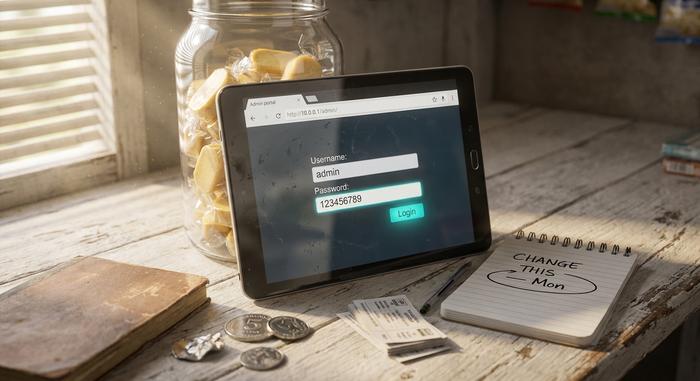
Default credentials are not consistent across router manufacturers. Tech Pilipinas, which keeps a running list of default router passwords and usernames for Filipino operators, lists the LPB factory defaults as username `admin`, password `123456789`. The popular advice that says "just try admin/admin" is wrong for LPB. It does not work. ADO units do use `admin/admin` on older firmware, but a fresh LPB box will flatly reject it. Treat any list of default router passwords as a starting point you will replace within five minutes, not a long-term setting.
Here is the short reference for the brands you are likely to meet at 10.0.0.1.
| Router or platform | Default username | Default password | Notes |
|---|---|---|---|
| LPB Piso WiFi 2.0 | admin | 123456789 | Captive portal at /admin |
| ADO Piso WiFi (older builds) | admin | admin | Confirm at first login |
| Comcast / Xfinity gateway | cusadmin | highspeed | US ISP, locked-down firmware |
| Generic Cisco / Linksys | admin | admin or password | Roughly 70% match this |
| TP-Link consumer routers | admin | admin | Typical out of the box |
Change the password the moment you log in. We will come back to why.
LPB Piso WiFi and the Filipino vendo phenomenon
"Piso" is Tagalog for peso. A Piso WiFi unit is a small box, often handmade from plywood, that accepts coins and dispenses time-limited internet access through a captive portal. The category emerged from Pisonet, the coin-operated computer terminals that spread across the Philippines in the early 2010s, documented in Wikipedia's entry on the format. When smartphones became universal, operators stopped shipping desktops in plywood cabinets and started shipping routers instead.
The growth was driven by an actual gap. Rest of World reported in September 2022 that roughly 60 percent of low-income neighborhoods in metro Manila lacked basic internet access at home. Piso WiFi filled it. Madeleine Casim, a Manila operator profiled in that report, was earning around forty US dollars on busy days and recovering her two-thousand-dollar setup cost in two to three months. Ian Lumbab, running a unit in Mindanao as a side business, reported about a hundred dollars a month: modest, but steady.
LPB Piso WiFi, the dominant commercial platform, says on its own site that 420,000 active machines are deployed across 21 distributors. That number is vendor self-reported, so treat it with the usual skepticism. The platform sells two licensing tiers: a Lite plan at 400 pesos per year for up to fifty users and a Premium plan at 700 pesos per year for unlimited users, with cloud session sync across machines and built-in support for GCash and Maya payments alongside coins.
JuanFi, the open-source MikroTik-based alternative, is harder to count because anyone can flash a router with it. AdoPiSoft, a third commercial option, ships its own captive portal and uses a different default rate of one peso for five minutes. A piso wifi connection in the field could be running any of these three stacks, and the admin path differs slightly in each.
Rates are not uniform either. The AdoPiSoft template uses one peso for five minutes; TP-Link's Philippines blog cites operators who run one peso for ten minutes, five pesos for an hour, twenty pesos for five hours. There is no national standard. The price tag on the box is whatever that particular owner set in the admin panel.
Piso WiFi pause time feature: how the timer freeze works
This is the feature most people search for, and it is the one most often misunderstood. Pause Time does not pause the internet. It pauses your countdown.
Here is what that means in practice. You bought sixty minutes of internet time for ten pesos. You used twenty. Your mother calls you. You tap Pause Time on the captive portal, and the timer freezes at forty minutes of remaining time. Your phone leaves the network. An hour later, you reconnect, tap Resume Time, and the forty minutes start counting down again. The internet session resumes without losing balance.
What pause time does not do: it does not extend your purchase, it does not let you sneak through a lunch break, and it does not run forever. TP-Link's official guide for Piso operators, published on its Philippines blog, recommends allowing thirty to sixty minutes of pause per session. Some platforms automatically expire paused sessions after twenty-four hours, releasing the unused minutes back to the system. That last rule matters for users who pause overnight assuming their balance will still be there in the morning. On many machines, it will not.
There is one more catch. Operators can disable the pause feature entirely under Portal Settings → Insert Coin Mode. Many do, because pause time eats into their per-minute revenue. If you tap Pause and the button does nothing, the operator turned it off. That is their right. It is not a bug.
| System | Default pause options | Auto-expire | Operator override |
|---|---|---|---|
| LPB Piso WiFi | 30 min, 1 hr, 2 hr | After 24 hr (configurable) | Yes, under Portal Settings |
| ADO Piso WiFi | 30 min, 1 hr | After 24 hr | Yes |
| JuanFi (open source) | Operator-defined | Operator-defined | Always |
| TP-Link recommended | 30-60 min per session | Configurable | Yes |
There is no platform-wide constant for pause duration. Anyone telling you "the default is five minutes" or "the default is one hour" is repeating a single operator's setting as if it were a standard — it is not.
Access 10.0.0.1: pause and resume your Piso WiFi time
The user flow and the operator flow are different. Most guides smush them together. Here is each one cleanly.
As a user:
1. Connect to the Piso WiFi SSID. The network name is usually written on the box.
2. The captive portal opens on its own at 10.0.0.1. If it does not, open the address manually.
3. Drop the coin or pay through GCash or Maya, depending on what the operator supports. LPB 2.0 supports all three plus cloud session sync.
4. When you need to step away, tap Pause Time. The countdown freezes.
5. Disconnect from Wi-Fi. Walk away.
6. Return, reconnect, reopen 10.0.0.1, tap Resume Session or Resume Time, depending on the firmware.
As an operator:
1. Connect to your own management network, not the public Piso SSID.
2. Visit `http://10.0.0.1/admin/`. Log in with the password you set after first install, not the factory default.
3. Open Portal Settings, then Insert Coin Mode.
4. Toggle Enable Pause Time and set the maximum pause window you allow.
5. Save and reboot if the firmware asks for it.
6. Test it from a second phone before assuming it works for paying users.

When 10.0.0.1 won't load: a troubleshooting tree
Nine times out of ten the failure is one of four things. Work the list top to bottom. Skipping ahead wastes coins.
You typed it wrong. Embarrassing. Common. Fixable. Type `10.0.0.1`. Not `10.0.0.0.1` instead of 10.0.0.1, not `10.0.01`, not `10.0.0.1.com`. Forget the leading `http://` and Chrome will Google your IP, which it then offers as a search suggestion. That is not the page you want.
You are not on the right network. Phones cheat. They quietly switch back to LTE the second the captive portal fails to authenticate, and you do not always notice. Pop up the WiFi panel. Read the SSID. Make sure it says the Piso name written on the box, not your home router or your data plan. iOS users especially: turn off Auto-Join for any other network nearby, otherwise the phone will hop the moment the vendo signal dips.
HTTPS is blocking the captive portal. Piso routers serve plain HTTP. Browsers, getting more paranoid every release, refuse self-signed certificates outright. Drop the `s`. Type `http://10.0.0.1` with the protocol included so Chrome cannot upgrade you. Still refuses? Visit `http://neverssl.com` first. It forces an unencrypted connection, the captive portal intercepts it, and the login page appears, usually within a second.
Cache, cookies, or a stuck DNS resolver. Clear the browser cache for that domain. Or open a private window, which is faster. On Windows: `ipconfig /flushdns` from Command Prompt. On macOS: `sudo dscacheutil -flushcache`. On a phone: airplane mode on, count to ten, airplane mode off.
If you still see nothing, the box itself is sulking. Most LPB units hide a recessed reset button under the lid. Hold it for ten seconds with a paperclip. The router returns to factory state, factory WiFi password and all. The reset also wipes your custom admin password, your SSID, your rate plan, and the voucher list you spent two hours generating. So treat reset as the last resort, after every other lever above.
Xfinity, Comcast routers and Piso WiFi router brands at 10.0.0.1
10.0.0.1 powers two ecosystems with almost nothing else in common. In the United States, the address points to a Comcast or Xfinity gateway whose firmware is locked, whose default credentials are `cusadmin / highspeed`, and whose updates push automatically from the carrier. The owner barely sees the admin panel.
In the Philippines, the same address is the daily-driver dashboard of a small business. The operator logs in to change rates, generate vouchers, ban abusive MAC addresses, set parental control filters where the box serves a household, and push firmware by hand. The Comcast subscriber and the Piso WiFi operator type the same IP and land on opposite jobs.
Bookmark 10.0.0.1 and lock your admin login
The door is the same whether you run a vendo in Cebu or you are staring at an Xfinity router in Chicago: type 10.0.0.1, get the password right on the first try, and change the default. Your one-peso coin should not also be the cost of someone else logging in as admin and rewriting your rate plan. Bookmark the right address, learn the pause button, and treat the factory password as a placeholder, not a setting.