What Is an SSID? Wi-Fi Network Name & How to Find It
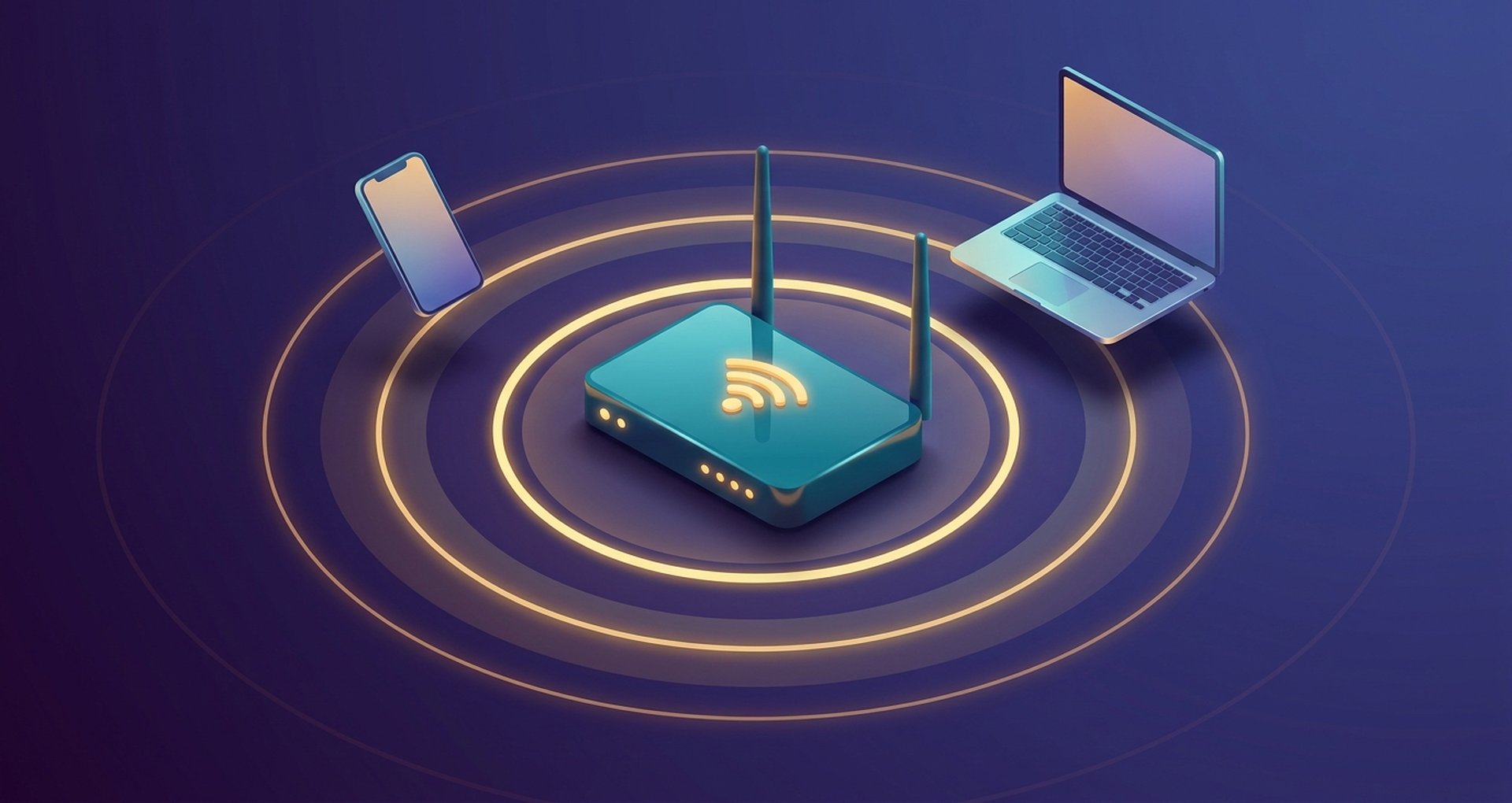
Open the Wi-Fi menu on your phone and you'll see a list of network names. Some you recognize instantly. Others look like gibberish, things like "NETGEAR43" or "ATT-Fiber-8821." Every single one of those is an SSID.
So what is an SSID, exactly? Short answer: it's the name your network goes by. Long answer, the one that actually helps you troubleshoot a bad connection or lock down your router, takes a bit more explaining. This guide gets into where that name comes from, how to find yours on any device, and why it's not the same thing as an IP address or a password. We'll also cover which security tweaks are worth your time and which ones are just busywork.
What Is an SSID? Service Set Identifier Explained
SSID. Three letters, stands for Service Set Identifier. Fancy name for something simple: it's just the label on a wireless network. The thing that lets your phone tell your neighbor's router apart from yours.
There's a hard cap on length. 32 characters, tops, set by the old IEEE 802.11 standard that Wi-Fi still runs on today. Letters, numbers, spaces, dashes, periods, mix in whatever you want. And case matters to your device even if it doesn't to you, so "Office-Wifi" and "office-wifi" register as two separate networks under the hood.
Nobody's router names itself. Somebody sets that name, a manufacturer during the factory setup, an IT admin at work, or you, sitting at your laptop typing into the admin panel. Skip that step and finding your actual network among a dozen lookalike signals turns into guesswork.
How Do SSIDs Broadcast and Work on Your Wireless Network?
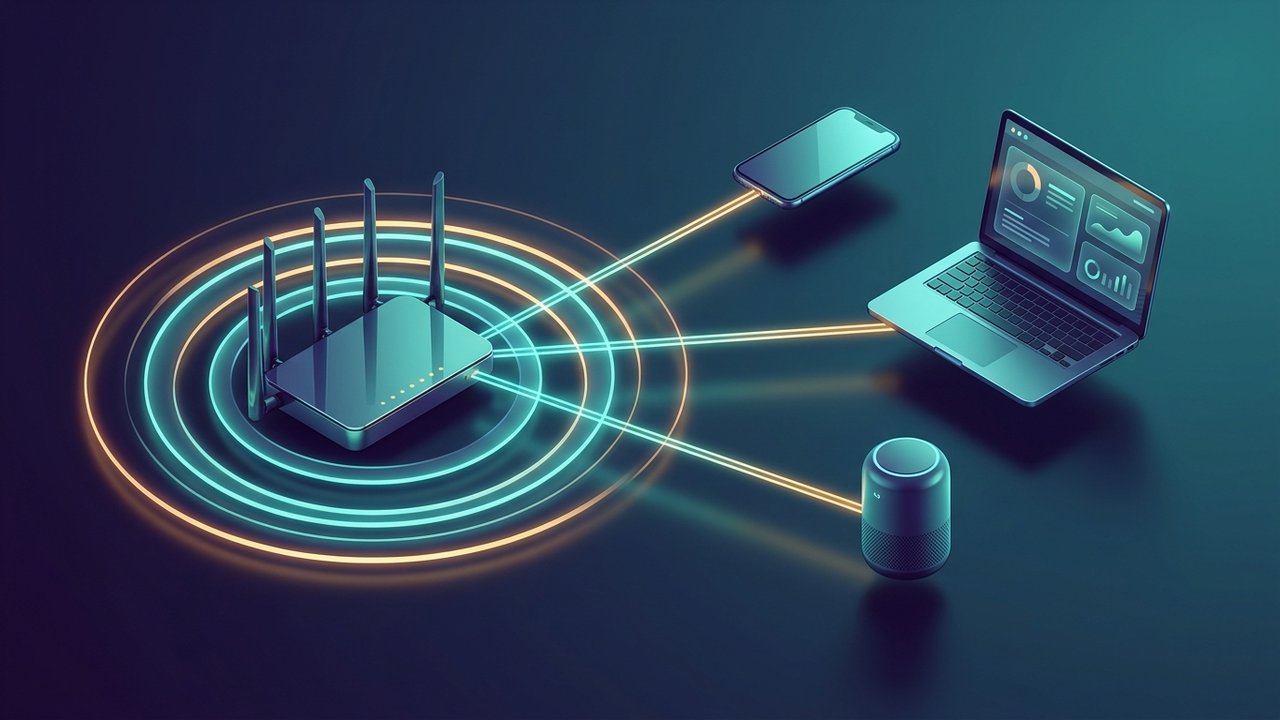
An SSID doesn't just sit quietly on your router. It actively announces itself, which is why your phone can list a dozen nearby networks the moment you open Wi-Fi settings.
The process works like this:
- The router or access point sends out beacon frames at regular intervals, small radio packets that include the SSID and basic network details.
- Nearby devices scan for these beacons automatically, building the list of available Wi-Fi networks you see on screen.
- When you select a network and enter its password, your device and the access point exchange credentials and establish an encrypted connection tied to that SSID.
- If a network's SSID broadcast is disabled (a "hidden" network), devices won't list it automatically. You'd need to type the exact name manually to connect.
Multiple routers can technically use the same SSID. This matters most for mesh systems and large offices running several access points under one network name for seamless roaming. Your device just connects to whichever access point has the strongest signal, switching automatically as you move through the building without dropping the connection.
How to Find the SSID on Your Router or Device
Most people only go looking for their SSID when something's not connecting right, or when they're setting up a new smart device that needs the exact network name. Here's how to find it depending on where you're looking.
- On the router itself. Flip it over. Most routers print a default SSID and password on a sticker on the bottom or back panel, alongside the admin login details.
- On Windows. Click the Wi-Fi icon in the taskbar. The network you're connected to is listed at the top with a "Connected" label next to its SSID.
- On macOS. Click the Wi-Fi icon in the menu bar at the top of the screen; the current network name appears highlighted in the dropdown list.
- On iOS. Go to Settings > Wi-Fi. The connected network's SSID is shown at the top under "Wi-Fi," with other nearby SSIDs listed below.
- On Android. Open Settings > Network & Internet > Wi-Fi. The connected SSID appears at the top of the screen, often next to a signal-strength icon.
- Through the router's admin panel. Log in via its default gateway IP address, commonly 192.168.0.1 or 192.168.1.1, and check the wireless settings page, which displays and lets you edit the current SSID directly.
Can't find it anywhere and the sticker's worn off? Contact your internet service provider. They can usually confirm the default network name tied to your account, or walk you through a router reset if needed.
Is SSID the Same as an IP Address or Password?
SSID, IP address, and Wi-Fi password get confused constantly because all three show up during the same setup process, but they do completely different jobs. Mixing them up is one of the most common sources of confusion when troubleshooting a connection.
| Term | What it identifies | Visible to others? | Changes how often |
|---|---|---|---|
| SSID | The network's name | Yes, broadcast openly (unless hidden) | Rarely — set once, changed occasionally |
| Wi-Fi password | Credential to join the network | No, kept private | Changed for security resets |
| IP address | A device's address on the network | No, only visible within the network | Often, especially with dynamic assignment |
| MAC address | A device's hardware identifier | No, but detectable by network tools | Fixed (unless spoofed) |
The SSID gets you to the right network in a list. The password proves you're allowed to join it. Your IP address only shows up after you connect, identifying your specific device on that network for routing traffic, and it has nothing to do with which network you picked in the first place.
Changing Your Default SSID: Why and How
Your router came with a default SSID. The manufacturer picked it, not you, and that causes two headaches. One: names like "Linksys" or "TP-Link_A1B2" tell every device nearby which router brand you're running, sometimes the model too. That's a gift to anyone hunting known vulnerabilities for that specific hardware. Two: generic names make it stupidly easy to connect to your neighbor's identically-named network by mistake.
Fixing it takes about five minutes. Here's the process:
- Connect to your Wi-Fi and open a browser.
- Type in your router's admin IP address. It's on the label if you've forgotten it.
- Log in with the admin username and password. Also on the label, usually.
- Find the wireless or Wi-Fi settings section.
- Type a new SSID, save it, apply the changes. You'll lose connection for a few seconds while the radio restarts.
- Reconnect your devices to the new name using the same password as before.
One tip when naming it: don't use your address, apartment number, or your actual name. That's basically a beacon telling strangers where you live. A boring, forgettable name wins every time over something identifiable or attention-grabbing.
SSID Security: Hidden Networks, ESSID, and Cyberattack Risks
A lot of people get tripped up here. "Hiding" a network sounds like it should help. It mostly doesn't, and it's worth knowing why before you bother.
Hide the SSID and broadcast just switches off, so it stops showing up when someone scans nearby networks. Feels like a win. It isn't, not really. The router still sends the SSID out in probe response frames the second a device that already knows the name tries to reconnect. Grab any basic Wi-Fi scanning tool and there it is. What you actually get for your trouble: every new device now needs the name typed in by hand, no picking from a list.
Quick side note on terms. ESSID, Extended Service Set Identifier, is the shared name across several access points acting as one bigger network. Offices use this. Campuses too. Your home mesh system probably does it as well, letting you wander between access points without ever feeling a handoff.
Real attacks lean on SSIDs, too. The "evil twin" trick: set up a rogue access point, broadcast the same SSID as somewhere legit, a coffee shop's Wi-Fi works well, and wait for nearby phones to connect to the fake one by mistake. From there the attacker reads whatever traffic isn't wrapped in HTTPS. None of this means hide your SSID. It means a name by itself tells you nothing about whether a network can be trusted.
SSID Best Practices to Protect Your Network
The name of your network matters less for security than what's actually protecting it. These practices address the parts that genuinely reduce risk:
- Use WPA2 or WPA3 encryption. Never the outdated WEP standard or an open, unencrypted network. This is the single biggest factor in actual Wi-Fi security.
- Set a strong password for the network itself, unique and separate from your router's admin login password.
- Change default admin credentials on the router, not just the SSID. Many attacks target the unchanged factory admin password, not the network name.
- Create a separate guest network with its own SSID and password so visitors and smart-home devices never touch your main network.
- Keep router firmware updated so known vulnerabilities get patched automatically, or with minimal manual effort.
- Disable WPS (Wi-Fi Protected Setup) if you don't actively use it. It's a known weak point that bypasses your regular password protections.
None of these depend on hiding or obscuring the SSID itself; they depend on what's guarding access to the network behind that name.
Key Takeaways
Boiled all the way down, what is an SSID? The name of your wireless network. Out in the open by design, so devices can actually find it. Real security lives somewhere else entirely: encryption, a password nobody could guess, firmware you actually keep updated. Not in hiding a name.
Go look at your router right now, seriously. Still broadcasting a factory default? That's the brand and model announced to everyone within range. Change it. Add WPA2 or WPA3 and a password that isn't garbage, and your network stops being the easy target on the block.