How to Manually Change Your IP Address: A Practical Guide
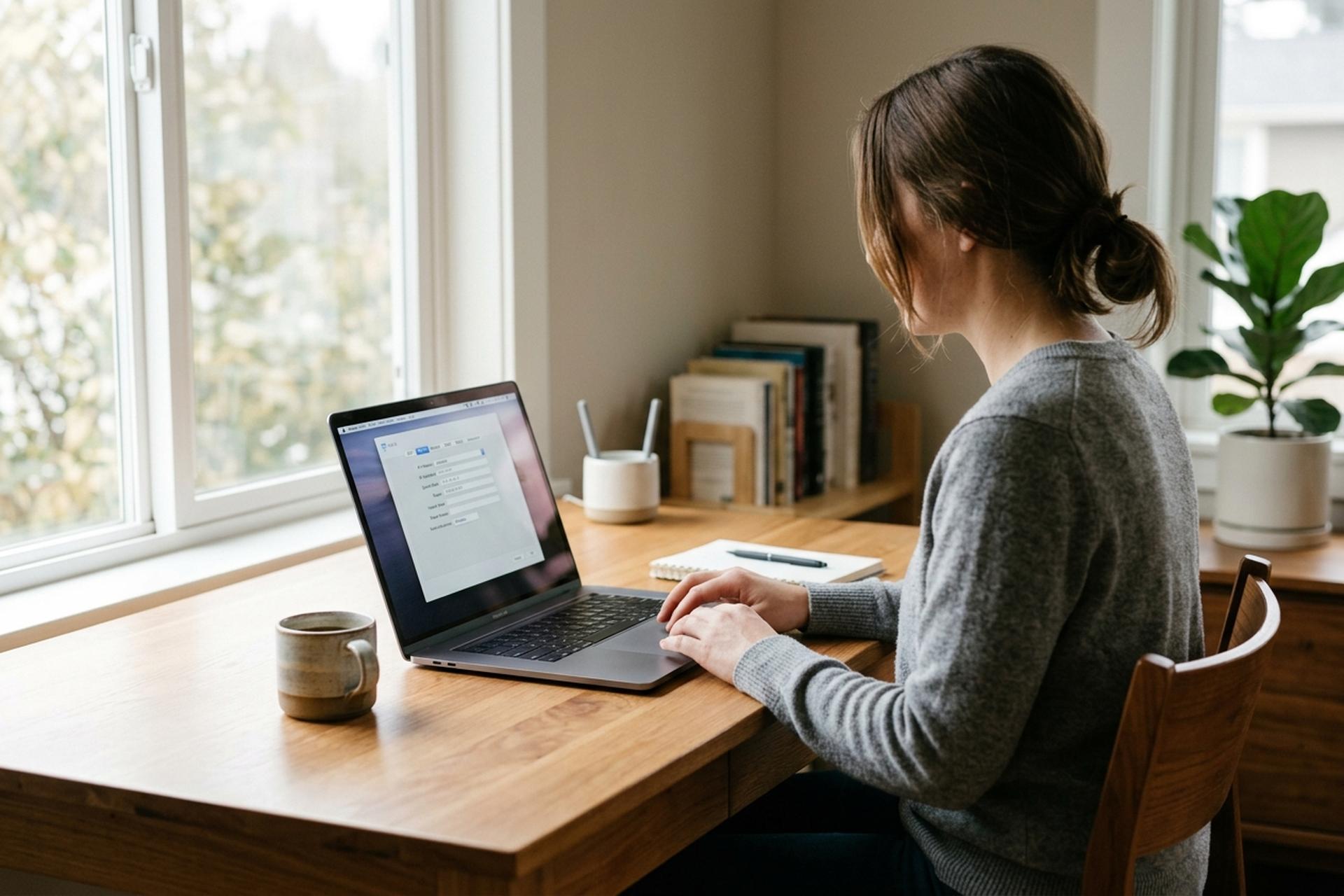
Almost every article about how to manually change your IP address quietly skips the most important sentence: the panel you are about to open changes one of two IP addresses your device deals with, and it is probably not the one you came here to change. The settings page handles your private local address, the one your router hands out behind the scenes. The address websites, streaming services, and your bank see is a separate thing controlled by your internet service provider. This guide walks the actual manual steps for Windows, macOS, Android, iOS, and Linux, then explains plainly what each of those clicks does and does not accomplish in 2026.
The short version: what manually changing actually changes
Setting an IP manually in your operating system changes one thing. The address your device uses inside your own network. Nothing else. Ninety seconds of work, completely invisible past your router. If you came here because two devices are fighting over the same address, or you want a fixed slot for a home server, or your printer keeps drifting onto a new number, the manual panel is the right tool. If you came here because a streaming site says you are in the wrong country or because you want websites to stop tracking you, the manual panel will not help. The rest of this guide lives in the space between those two answers.
Two IP addresses, two completely different things
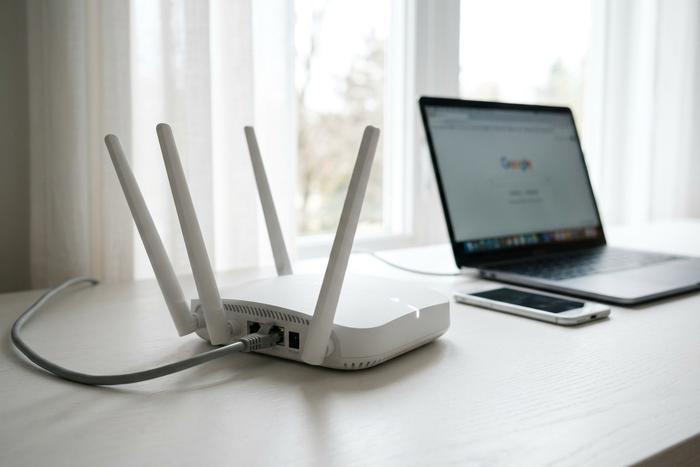
Picture the router sitting in the middle. On one side, the wider internet. On the other, the cluster of devices in your house, laptop and phone and printer and a few too many smart bulbs. The router has an address on each side. That detail is where most of the confusion in this topic starts.
The inside address is the private IP. Sometimes people call it the local or LAN address. It almost always sits in one of three reserved ranges, the most familiar of which is 192.168.x.x. The IETF set those ranges aside decades ago specifically so they could not be routed onto the public internet, and that has not changed. Your router runs DHCP, which is just a small bookkeeping service that hands out fresh leases to new devices and remembers which device got which number. Override the lease in your operating system network settings and you have done what this article calls "manually change."
The outside address is the public IP, and it is not really yours. The ISP hands it to your router. Every site you visit sees that one, not the one on your laptop. APNIC reported in January 2026 that something like thirty billion devices are now squeezed behind roughly three billion remaining IPv4 addresses, and most mobile carriers along with a meaningful slice of residential broadband solve that by running carrier-grade NAT. Hundreds, sometimes thousands, of customers crowd behind a single public address. The number a website logs as "you" might be shared with the customer two streets over, and you would have no way of knowing.
A short side-by-side helps:
| Property | Private IP (LAN) | Public IP (WAN) |
|---|---|---|
| Controlled by | Your router (via DHCP) | Your ISP |
| You can change it manually | Yes, in OS network settings | No, not from any device setting |
| Visible to outside websites | No | Yes |
| Typical range | 192.168.x.x, 10.x.x.x | Anything not in private ranges |
| What changing it affects | Local network only | Everything you do online |
Understanding these two types of IP addresses first tells you which jobs the manual settings panel can actually do.
Manually changing your private IP on Windows 11
The path is short. Settings, then Network and internet, then whichever connection you are actually using, Wi-Fi or Ethernet. Click into the active connection. The row you want is labelled "IP assignment" with an Edit button next to it. Flip the dropdown from Automatic (DHCP) to Manual, switch the Internet Protocol Version 4 toggle on, and four fields appear. IP address. Subnet mask, which is 255.255.255.0 on basically every home network. Gateway, which is the router itself, almost always 192.168.1.1 or 192.168.0.1. DNS, one or two entries, your call. Save, and Windows applies it immediately.
One thing to watch. The address you pick has to land outside the router's DHCP pool. The pool is just the range your router hands out automatically, and it is printed in the router admin page if you do not already know yours. If the pool covers 192.168.1.100 through .200, pick a slot below or above that range. Step inside the pool and you have quietly arranged a conflict for the day some new device joins and gets assigned the same number.
Windows 11 24H2 shuffled a few menus around, which is why screenshots in older guides will not always match. The command line has been stable for fifteen years, though. Drop into an elevated prompt and run something close to `netsh interface ip set address "Wi-Fi" static 192.168.1.50 255.255.255.0 192.168.1.1`, with your own interface name in the quotes. The same panel flips back to DHCP whenever you want to hand the address back. Windows 10 follows an almost identical flow through Network and Sharing Center; netsh works there too.
macOS, iOS, Android, Linux: manual change on the rest
Same toggle, four houses to find it in.
macOS Sequoia (15.x). Apple menu, System Settings, Network. Click the active connection, hit Details, open the TCP/IP tab. Configure IPv4 changes from "Using DHCP" to "Manually" and the address fields appear. Type, OK, done. Apple's support article was refreshed in 2025 and the same path covers Ventura and Sonoma.
iOS 18 on iPhone and iPad. Settings, Wi-Fi, tap the "i" next to the network. Scroll to IPv4 Address, tap Configure IP, switch to Manual, fill in address / subnet / router. One trap to flag: the same screen has "Private Wi-Fi Address" with three iOS 18 modes (Off, Fixed, Rotating every two weeks). That rotates your MAC, not your IP. A MAC is a hardware identifier the local router sees. Rotating it does nothing to what a remote website sees about you.
Android 14 and Android 15. Settings, Connections (Network and internet on some skins), Wi-Fi. Tap the gear next to your active network. IP settings sits in the advanced options. Switch Automatic to Static, fill address / gateway / network prefix length / DNS. Path has not really moved since Android 12; vendors restyle the icons but the steps are the same.
Linux. If you are running a modern desktop, it is almost certainly NetworkManager, and `nmcli` is the calmest way to handle this from the terminal. Roughly: `nmcli con mod "Wired connection 1" ipv4.addresses 192.168.1.50/24 ipv4.gateway 192.168.1.1 ipv4.method manual`, then `nmcli con up "Wired connection 1"` to bounce the interface. The old `ifconfig` still works on most distributions, technically, but it has been formally deprecated for years in favour of iproute2: `sudo ip addr add 192.168.1.50/24 dev eth0`. Headless servers more often edit netplan or systemd-networkd YAML and reload from there.
The five flows collapse to one instruction: stop accepting DHCP, use this address instead. None of them reaches the public address the ISP put on your router.
Why your public IP doesn't change when you tweak settings
The address the wider internet sees lives on the WAN side of your router. Nothing inside your house controls it. That is true on Windows, macOS, Android, iOS, Linux, and any future operating system, because the public address is not a device setting at all.
Carrier-grade NAT makes the picture stranger. On most mobile networks and a growing share of residential broadband, your home does not have its own public IPv4 address. Hundreds of customers share one address, and the carrier's gateway juggles the connections. Cloudflare published detection methods for this in 2024 and concluded that telling whether you are behind CGNAT is, for most users, impossible without ISP cooperation. The address a website logs as "you" might be shared with the customer two streets over.
IPv6 changes the picture in the opposite direction. The Internet Society reported in April 2026 that IPv6 just crossed fifty percent on Google's measurement, with the multi-source aggregate sitting around forty-three percent across APNIC, Cloudflare, Facebook, and Google data. On IPv6 there is no NAT. Every device gets a globally routable address, and unless your operating system runs privacy extensions that rotate the lower bits regularly, that address can be traced back to your specific phone or laptop. Manually changing the IPv6 link-local address in a settings panel does almost nothing useful, because the prefix that identifies your network still comes from the ISP.
The short answer to "how do I change my public IP" is one of four things. The ISP reassigns it, often only after a long disconnect and not always then. You call the ISP and ask for a new IP address, which works on some plans. You sit behind a VPN or proxy server, where the substitute address becomes the one websites see. Or you change networks entirely, like tethering to your phone for a different egress. Resetting the router used to be a reliable trick a decade ago. Now it works only if your ISP issues dynamic addresses and your old lease has actually expired, which is increasingly uncommon.
When manual change actually fixes the problem you have
The manual settings panel is a precise tool. It fits some problems well and others not at all. The table maps what people typically come here looking for to what actually solves it.
| What you want to do | Does manual private IP change help? | What actually works |
|---|---|---|
| Stop two devices fighting over the same address | Yes | Manual change, pick an address outside the DHCP pool |
| Set up port forwarding to a home server or NAS | Yes | Static private IP, then forward in router admin |
| Make a printer or smart device stable on the network | Yes | Static private IP |
| Bypass a website geo-block | No | VPN with an exit in the target country |
| Stop advertisers and websites from tracking you | No | VPN, Tor, browser-level privacy settings |
| Get past an IP-based ban on a service | No | VPN or ISP-reassigned public IP |
| Watch your home country's streaming service while traveling | No | VPN with a home-country exit |
| Fix an "incorrect IP address" error inside the LAN | Yes | Manual change or DHCP renewal |
If your problem starts with the words "websites see" or "the service thinks I am in," the manual settings page is the wrong tool. If it starts with "two devices" or "I want a fixed address for," manual is exactly right.
VPN, proxy, Tor, router reboot, ISP request: what each method does
The honest comparison most guides skip, in one table.
| Method | Changes public IP | Encrypts traffic | Typical cost | Latency cost | Geo-unblocks | Hides from websites |
|---|---|---|---|---|---|---|
| Manual private IP change | No | No | Free | None | No | No |
| Router reboot | Maybe (only if ISP gives dynamic, lease expired) | No | Free | None during; brief outage | Sometimes | No |
| Ask ISP for new public IP | Yes | No | Free or static add-on $5–15 / mo | None | Limited | No |
| VPN | Yes (to VPN's address) | Yes | $3–12 / mo typical | Small to moderate | Yes | Yes |
| Proxy server | Yes (to proxy's address) | Usually no | Free to $5 / GB | Variable | Yes | Partial |
| Tor | Yes (to exit relay) | Yes (layered) | Free | High | Partial (many sites block exits) | Strongest available |
| Mobile hotspot switch | Yes (to carrier IP) | No | Data plan cost | None | Sometimes | No |
The AllAboutCookies 2026 VPN consumer survey found sixty-two percent of VPN users cite changing the IP as the main reason they subscribe, and forty-one percent want access to geo-restricted content. That is the real intent behind most searches here. The manual settings panel serves a smaller, more technical job. Both deserve clear answers, not blurred recommendations.
Risks worth knowing: IP conflicts, account locks, compliance flags
Three classes of trouble follow IP changes if you are casual about them.
The first is local: pick an address already inside the DHCP pool and a new device joining your network later will be handed the same number, breaking both connections until one of you reboots. The fix is the rule from the Windows section above: pick a slot outside the DHCP range.
The second is friction with online services. Frequently rotating your apparent IP, especially through free VPNs whose endpoints are widely flagged, trips fraud detection at banks, exchanges, and large platforms. Expect CAPTCHA loops, forced re-authentication, and the occasional account lock that takes a phone call to undo.
The third sits at the business and compliance layer and only matters if you are running a payment system, an exchange, or a crypto-payment processor like Plisio. The 2022 OFAC settlement with Tango Card established that accepting twenty-seven thousand transactions from IP addresses geolocated in sanctioned countries was a violation worth a $116,000 fine, and the agency's broader guidance has made IP screening a baseline expectation for any cross-border payment business. CoinLaw tracking shows OFAC crypto-enforcement actions rose roughly twenty-eight percent year over year from 2023 to 2024, and the SDN list passed 1,245 wallet addresses by February 2025. A user changing their own private IP in a settings panel is doing a personal-network task. A merchant relying on the public IP it sees to decide whether a transaction is legal is doing real legal work, and a VPN-issued address on the customer side does not relieve either party of that. Ninety seconds to change the local one; near zero direct control over the public one; and a separate compliance machinery quietly deciding what each address means before any of it reaches the merchant.