WebRTC Leak: How It Exposes Your Real IP Address
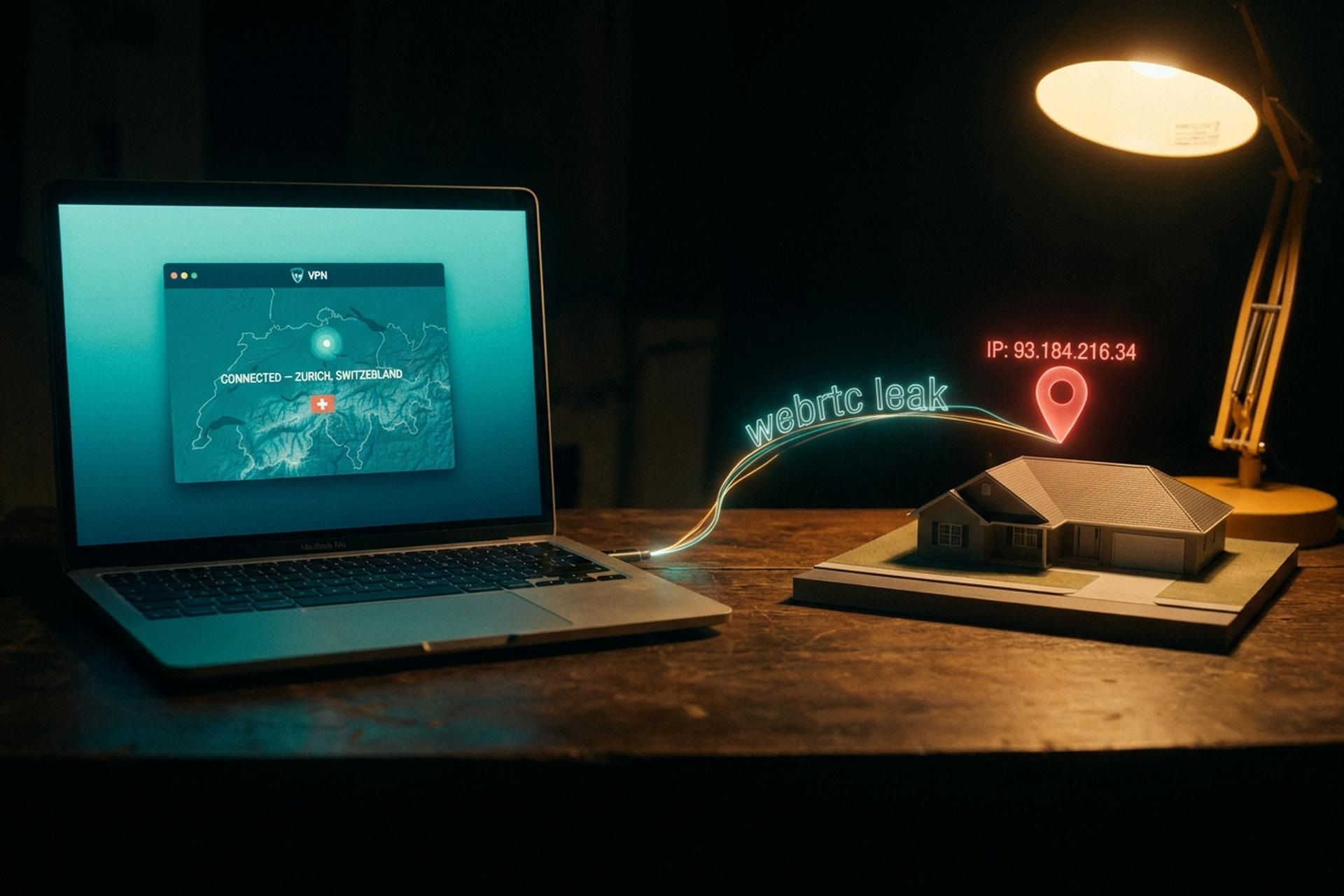
Your VPN is on. The exit node says you are in Zurich. Your wallet feels anonymous. And then a single feature built into your browser quietly tells a website your real IP address anyway — the one tied to your home and your name. That feature is WebRTC, and the gap it opens is called a WebRTC leak.
For most people, that is a privacy annoyance. For anyone holding crypto, it is the first link in a chain that ends with a stranger knowing which wallet belongs to which house. This guide walks the rest of that chain: what a WebRTC leak is, how it slips past a VPN, how to test for it, and how to shut it down in every browser. And why it matters far more the moment your browser touches a wallet.
What a WebRTC Leak Is and Why It Happens
WebRTC stands for Web Real-Time Communication. In plain terms, it is the plumbing that lets browsers do video calls, voice chat, and file transfers with no plugin, and it has shipped in every major browser since around 2011. Here is the part that bites you. To connect two people directly, each side has to learn the other's IP. That is not a bug. It is the whole job.
The catch is that any website can trigger it. A page opens a WebRTC connection in the background. It reads the IP addresses your browser offers up. No permission prompt. No visible mark. Do that behind a VPN, watch your real address appear anyway, and you have a WebRTC leak. None of this is new. Developer Daniel Roesler posted a working proof of concept in January 2015, pulling real IPs straight out of VPN users' browsers. Ten years on, the mechanism has barely budged.
What makes this one nasty is how quiet it is. No pop-up. No permission prompt. Nothing in the address bar. The request never appears in the network log a normal person might think to check, and ad blockers wave it through, because to the browser it looks like ordinary WebRTC setup, not a tracker. So you can run a paid VPN, a clean browser, and an ad blocker all at once, and still hand your real address to the first page that asks for it. Invisible and routine: that is exactly why the leak has survived ten years.
How the Leak Works: STUN, NAT and Your IP
To understand why a VPN does not automatically save you from a WebRTC leak, it helps to see what the browser is actually doing under the hood.
STUN and ICE, the mechanism
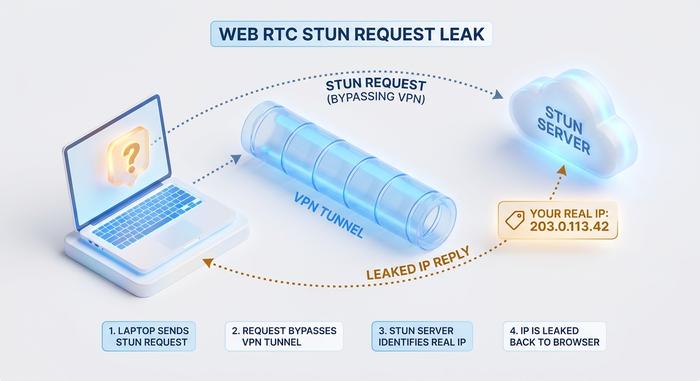
Most devices sit behind a router that performs NAT (Network Address Translation), so your computer does not know its own public address. To find it, WebRTC uses a helper called a STUN server. The browser asks the STUN server a simple question: "from where you sit, what address do you see me coming from?" The server answers with your public IP. WebRTC gathers several of these answers, called ICE candidates, and lists them so a peer can pick a route. A snooping website just reads that list. Game over.
Why does that matter? Because the whole STUN exchange runs in JavaScript that any page can fire off. No dialog box, the way there is for the camera or your location. The script opens a peer connection. It scoops up the ICE candidates the browser produces. It reads the addresses off the list. All in a fraction of a second, and nothing looked wrong to the browser. It just did the job WebRTC was built to do.
Public IP versus local IP
WebRTC can hand over two different addresses, and they give away different things. Your public IP address points to your rough location and your internet provider. Your local IP — something like 192.168.1.7 — just maps the network inside your home or office. Neither belongs in the hands of a random website. But the public one is what should worry you, because it leads back to the real world: a city, a provider, eventually a door.
Why a VPN does not stop it
A VPN reroutes your normal traffic. The trouble is that a STUN request can slip outside that tunnel, reach the STUN server directly, and come back carrying your real public IP. Browsers did patch part of this in 2019 and 2020, swapping the local IP for a scrambled mDNS hostname. Helpful, but it only hides the local candidate. The public IP from STUN can still get out. Worse, the masking often drops the moment a site has microphone or camera permission. So the leak survives exactly where most people assume they are safe.
How to Run a WebRTC Leak Test Properly
Checking takes about a minute, and you do not have to take anyone's word for it.
Start with the VPN off and write down the public IP your connection shows. Now switch the VPN on and open a WebRTC leak test page, say browserleaks.com/webrtc or ipleak.net. Compare. If the VPN is doing its job and there is no IP leak, you should see only the VPN's address. If that number from step one turns up anywhere on the page, you have found your leak. For a fuller picture of everything your browser exposes, the same logic applies to the broader set of checks covered in our guide to BrowserLeaks.
A couple of things trip people up when you check for WebRTC leaks. You might see a local IP that looks like a scrambled string ending in .local. Do not panic; that is the mDNS masking doing its job, not a leak. The address that matters is the public one. Test in the exact browser and profile you use for anything sensitive. Settings and extensions do not carry across them. And run it again after every browser update, since a patch can quietly switch these settings back.
Which Browsers Leak Your IP, and Which Don't
Not all browsers handle a WebRTC leak the same way, and the differences matter because of how the market is split.
| Browser | WebRTC leak risk | Built-in protection |
|---|---|---|
| Chrome | High | None native; needs an extension |
| Firefox | Medium-high | Leaks public IP by default, but easy to disable |
| Brave | Low | Fingerprint and WebRTC protection on by default |
| Tor Browser | None | RTCPeerConnection disabled entirely |
Chrome sits at the heart of the problem, purely because of its reach. It held about 70% of the global browser market as of May 2026, and it ships with no native switch to stop WebRTC from giving up your IP. Firefox, at roughly 2% share, leaks the public IP by default too, though at least it lets you kill the feature in a single setting. Brave is the bright spot. It crossed 101 million monthly active users in September 2025, and it is the one mainstream Chromium browser that turns WebRTC protection on out of the box. And Tor? Tor dodges the whole thing by disabling the peer connection entirely, which is exactly why privacy researchers keep steering newcomers toward it.
How to Disable WebRTC and Prevent Leaks
Two ways to shut this down. Kill WebRTC entirely, or pen it in so it only ever sees the address you choose. Which one you want depends on whether you actually make video calls in your browser. Here is the practical version, browser by browser.
| Browser | How to disable or limit | Effect |
|---|---|---|
| Firefox | about:config, set media.peerconnection.enabled to false | Full disable |
| Chrome | Install WebRTC Network Limiter or WebRTC Control | Limits exposure |
| Edge | edge://flags, enable "Anonymize local IPs" | Partial |
| Safari | Develop menu, Experimental Features, limit WebRTC | Partial |
Chrome and Edge
Chrome is the awkward one. There is no off switch buried in the menus, so to block WebRTC you need an extension. Google publishes its own, the WebRTC Network Limiter. It fences off the risky addresses without killing your calls. Want something blunter? WebRTC Control flips it off in a click. Microsoft Edge runs on the same Chromium engine, so those extensions work there too, but it also hides a handy flag at edge://flags that anonymizes your local IP.
Firefox
Firefox makes it easy. Type about:config in the address bar, click past the scary warning, search for media.peerconnection.enabled, and flip it to false. That is it. WebRTC is off. The catch: in-browser video and voice calls go dark until you flip it back on.
Safari and Opera
Safari plays it safer by default, and you can tighten WebRTC further from the Develop menu under Experimental Features. Opera rides on Chromium, so it leans on the same extensions that work in Chrome.
Using a VPN, and the trade-off
Then there is the VPN route. If you use a VPN with genuine leak protection, it pushes WebRTC traffic through its own tunnel, so the STUN server only ever sees the VPN's address. Cleanest option, because your calls keep working, and a trustworthy proxy server can prevent IP leaks the same way. The catch is trust. Not every VPN actually does this. When VoidSec tested 70 VPN providers in 2018, 16 of them still leaked the real IP through WebRTC. About 23%. The good ones have fixed it since, but the lesson holds: test, do not assume. Want the thorough route? Disable WebRTC outright. Just remember it breaks anything that depends on it.

Why a WebRTC Leak Threatens Crypto Holders
For a crypto user, an exposed IP is not a privacy footnote. It is the seam between your on-chain life and your physical one. And lately that seam has turned dangerous.
The IP-to-wallet kill chain
Blockchain addresses are pseudonymous, not anonymous. Every transaction you have ever made sits in plain public view. The only thing keeping it from pointing back at you is the missing label: a name, a location. An IP is that label. And researchers proved the link was practical over a decade ago. In a 2014 study, Alexandre Biryukov and colleagues used a handful of well-placed nodes to tie Bitcoin pseudonyms to the IP addresses that first broadcast their transactions. A WebRTC leak hands an attacker that same connection for free. Open a block explorer or a DEX while your real IP is exposed, and one page can bolt the wallet you are watching onto your home and your provider.
And the danger compounds, because the leak does not need to catch you mid-transaction. It only has to fire once, on any page running a hostile script, while you are checking a balance or browsing a marketplace. After that? The IP gets cross-referenced against ISP records, data-broker profiles, an old breach. Sooner or later a name sticks. The wallet was public all along. The leak just handed over the label.
From de-anonymization to a knock on the door
This used to be an abstract worry. Not anymore. So-called wrench attacks, where holders are robbed or kidnapped for their keys, climbed about 75% in 2025, with 72 confirmed incidents and at least $41 million taken, according to industry tracking. The pattern barely changes: attackers pair visible on-chain wealth with an off-chain identity to put a real person at a real address. Your IP is one of the cleanest ways to nail down that second half.
Flip it around and think like the attacker. They can already see which wallets hold real money; that part is public. What they are missing is the map from a fat address to a front door. An IP shrinks the search from the whole internet down to a city, an ISP, often a single neighborhood. The rest is ordinary legwork. For an average browser, a leak like this is a shrug. For someone holding seven figures on-chain, it is the line between a pseudonym and a marked target. That gap is why crypto users should file a WebRTC leak under security, not online privacy preference.
Your IP is personal data
There is a legal angle, too. Back in 2016, the European Court of Justice ruled in the Breyer case that even a dynamic IP address counts as personal data, as long as someone could reasonably use it to re-identify you. By that logic, a site silently scraping your IP through WebRTC is processing personal data without consent. That does not plug the leak. But it tells you how seriously regulators take the thing your browser gives away for free.
Close the Leak Before It Opens
A WebRTC leak is quiet, it asks no permission, and a VPN on its own will not save you from it. So stack your defenses. Pick a browser that protects you by default, or switch WebRTC off where it does not. Run a VPN that actually passes a leak test to hide your IP. Re-check after every update. For anyone moving funds, the goal is narrow and worth saying plainly: keep the link between your wallet and your IP from ever forming, because once it exists, you cannot take it back. So when did you last test what your browser is really leaking?